
How to Take AI Notes on Google Meet
Taking notes on Google Meet is now easier than ever with the “Take notes with Gemini” feature. This AI-powered tool captures meeting transcripts in real-time, generates comprehensive summaries, identifies suggested next steps, and creates a Google Doc that can be shared with participants automatically. With this feature, you can focus entirely on the discussion, while the AI ensures every important point is documented.
For teams looking for an alternative or additional solution, VOMO AI Meeting Note Taker can automatically organize your Google Meet notes and share them with participants via email, chat, or other integrated platforms.

How the “Take Notes with Gemini” Feature Works
The feature uses Google’s AI, Gemini, to automatically generate a Google Doc during your meeting. Here’s what happens:
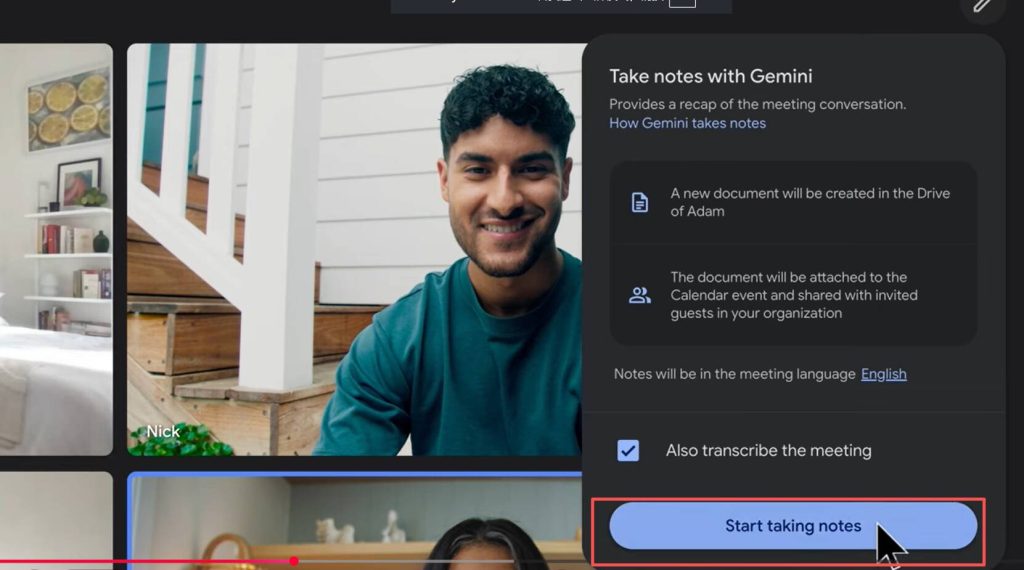
Enable Notes: Click the Notes icon and select Start taking notes. This also activates real-time meeting transcription by default.
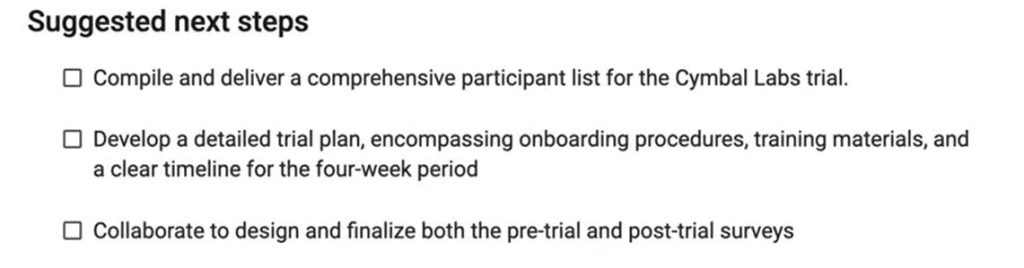
AI-Generated Google Doc: Gemini creates a structured document containing a meeting summary, detailed notes, suggested next steps, and a transcript if needed.

Google DOC meeting documents include summaries
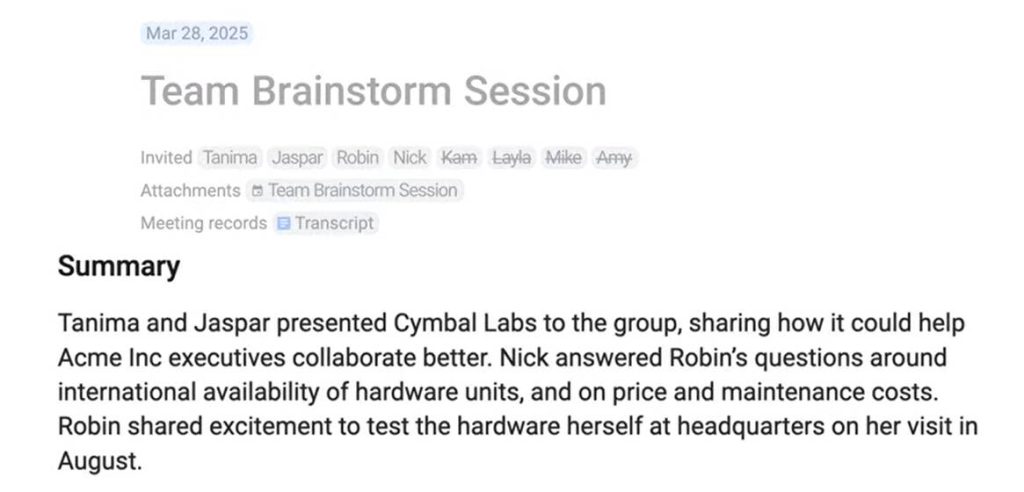
Google DOC meeting documents include details

Google DOC meeting documents include suggested next steps.
Automatic Sharing: After the meeting, the notes are emailed to the host and the person who started the note-taking session. The document is also added to the host’s Google Drive and, for scheduled meetings, linked to the Google Calendar event.
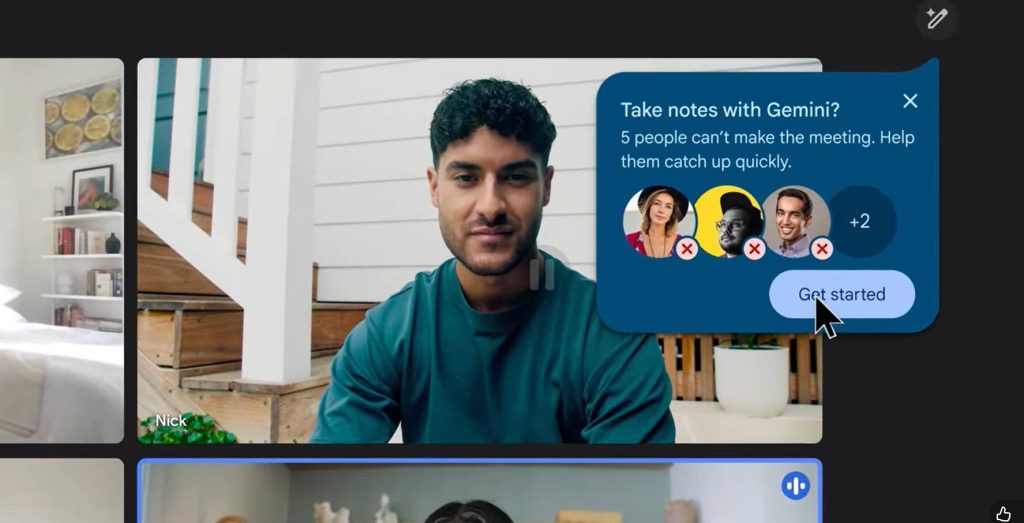
This process ensures that even participants who miss the meeting can stay informed with detailed, AI-generated notes.
Setting Up AI Notes for Recurring Meetings
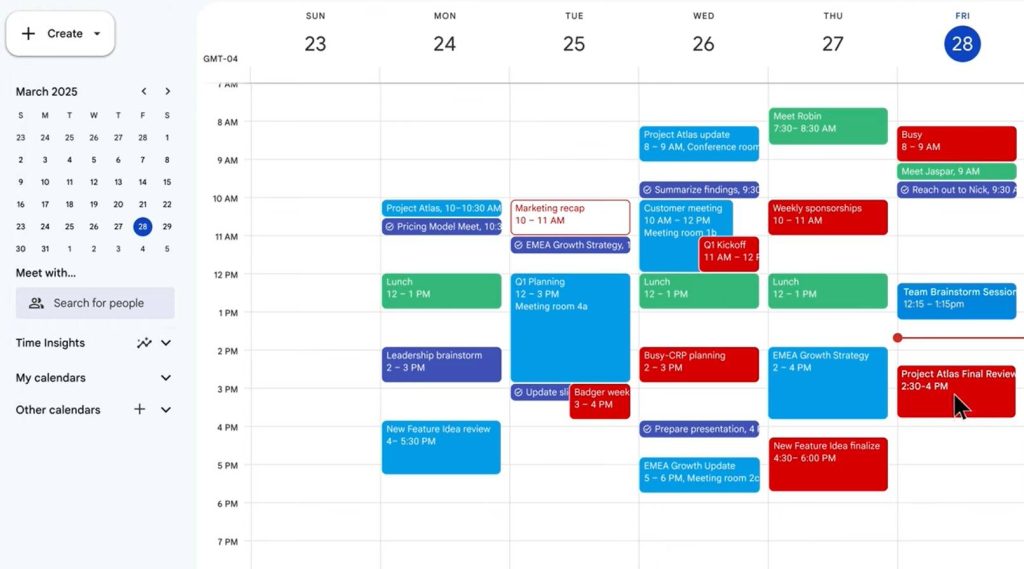
For upcoming or recurring meetings, you can pre-enable note-taking:
- Open the meeting invite in Google Calendar.
- 前往 Settings > Meeting records.
- 啟用 Take notes with Gemini.
This allows Gemini to automatically capture notes for each instance of the recurring meeting without manual setup, saving time and maintaining consistency across sessions.
Benefits of Taking AI Notes on Google Meet
Using AI to take notes on Google Meet offers several advantages:
- Focus on Discussion: You no longer need to juggle listening and typing simultaneously.
- Comprehensive Records: Every discussion point, decision, and suggested next step is captured accurately.
- 輕鬆分享: Notes are automatically emailed and added to Google Drive, making it easy for all participants to access.
- 節省時間: Recurring meetings are pre-configured, eliminating repetitive setup.
範例: Teams conducting cross-department project meetings can quickly distribute AI-generated summaries to all members, ensuring everyone is aligned without manual effort.
Accessing and Managing AI Notes After the Meeting
Once the meeting ends, you can access your AI-generated notes in several ways:
- Email: The notes are automatically sent to the host and note-taker.
- Google Drive: Notes are saved in the host’s Drive for ongoing reference.
- Google Calendar: Scheduled meeting notes are attached to the calendar event and shared with internal invitees.
This ensures that all records are centralized, searchable, and easily accessible for follow-up actions.
Devices and Platforms Supported
的 Take notes with Gemini feature is available on:
- Desktop browsers
- Android devices
- iOS 裝置
This cross-platform support ensures that you can capture and review AI notes regardless of the device you use for Google Meet.
Tips for Maximizing AI Note-Taking Efficiency
- Start Notes Early: Enable the feature at the start of the meeting to ensure no points are missed.
- Review Action Items: AI will suggest next steps, but always confirm assignments and deadlines with your team.
- Share Consistently: Use the automatic sharing feature to ensure all participants receive the notes without delay.
By integrating AI note-taking into your workflow, meetings become more productive, follow-ups are faster, and accountability is clearer.