Making a Word transcript from an MP4 file is simple with modern AI transcription tools. You upload the video, let the system extract and transcribe the spoken audio, then export the result as an editable Word document. This method saves time, eliminates manual typing, and works well for interviews, meetings, lectures, and online videos.
أدوات مثل فومو simplify the process by automatically converting video speech into clean, editable Word documents in just a few clicks.

What Does It Mean to Create a Word Transcript from an MP4 File?
Creating a Word transcript from an MP4 file means converting the spoken content inside a video into written text that can be edited in Microsoft Word. Since MP4 files contain both video and audio, transcription tools first extract the audio track and then convert speech into text.
This process allows you to:
- Turn video content into readable documents
- Search and edit spoken information
- Reuse content for reports, articles, or training materials
- Store conversations in a structured format
The final output is a fully editable Word file that mirrors the original spoken content.
Why Convert MP4 Videos into Word Documents?
Converting MP4 files into Word transcripts offers several practical advantages:
- Saves hours of manual transcription
- Makes video content searchable
- Improves accessibility for readers
- Allows easy editing and formatting
- Helps repurpose video content into blogs or documents
Once converted, the transcript can be shared, archived, or edited just like any other Word file.
Step 1: Upload Your MP4 File to a Transcription Tool
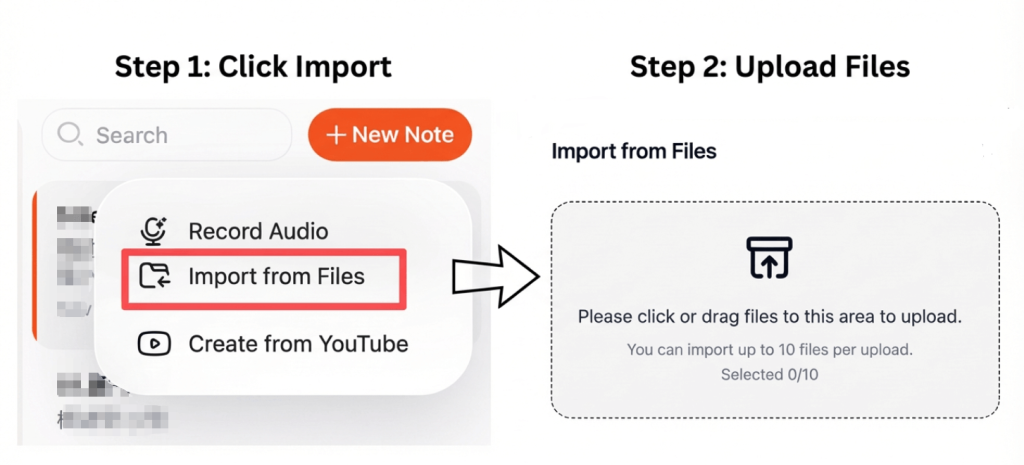
Start by choosing a transcription platform that supports MP4 uploads. Most tools allow you to upload files directly from your device or cloud storage.
For best results:
- Use videos with clear audio
- Avoid background noise
- Make sure speakers are audible
Good audio quality plays a major role in transcription accuracy.
Step 2: Convert the MP4 File into Text Automatically
After uploading the file, the system analyzes the audio track and converts spoken language into written content. This process is known as تحويل الفيديو إلى نص التحويل.
Advanced tools can:
- الكشف عن مكبرات صوت متعددة
- إضافة علامات الترقيم تلقائياً
- Organize text into readable paragraphs
The transcription usually completes within minutes, even for long videos.
Step 3: Export the Transcript as a Word Document
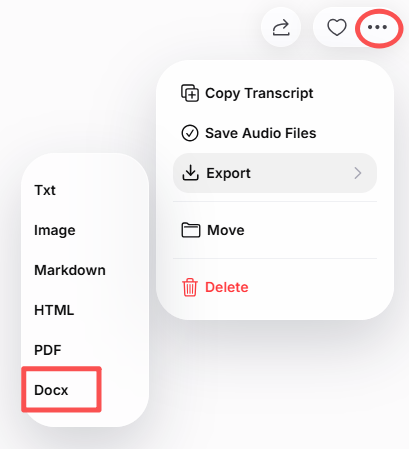
Once the transcription is complete, review the text and make any necessary edits. Most platforms allow you to export the final result as a Word (.docx) file.
You can then:
- Edit or format the document
- Add headings or notes
- Share it with others
- Store it for documentation or reference
Some tools also allow exporting to PDF or TXT formats if needed.
Best Tools to Convert MP4 to Word
Here are some reliable tools for converting MP4 files into Word documents:
- فومو – Fast transcription with clean Word export
- قندس الذكاء الاصطناعي – مثالي للاجتماعات والمحاضرات
- نوتا – Supports multiple languages
- الوصف – Good for creators and editors
- أدوات مفتوحة المصدر – Suitable for technical users
These tools rely on modern تحويل الصوت إلى نص technology to ensure accurate transcription results.
Tips for Getting the Most Accurate Transcripts
To improve transcription quality, follow these tips:
- التسجيل في بيئة هادئة
- تحدث بوضوح وبخطى ثابتة
- Avoid overlapping speech
- Select the correct language setting
- Proofread before exporting
Small improvements in audio quality can significantly improve final results.
الخاتمة
Making a Word transcript from an MP4 file is fast, efficient, and accessible with today’s AI tools. By uploading your video, converting the speech into text, and exporting it as a Word document, you can quickly transform video content into editable, searchable text.
Whether you’re working with interviews, lectures, or business videos, this method helps you save time and get more value from your content.