


Converting FLV to PDF means extracting spoken content from an FLV video file, converting that speech into written text, and exporting it as a clean, readable PDF document. With modern AI transcription tools, you can upload an FLV file, let the system automatically process the audio, and download a professional PDF in just a few minutes—no technical expertise required.
Among many available solutions, VOMO stands out for its reliable transcription accuracy and simple workflow. Even older FLV videos or recordings with multiple speakers can be converted into clear, well-structured text and exported as polished PDF files effortlessly.

What Is FLV-to-PDF Conversion?
FLV (Flash Video) is a legacy video format commonly used in older web content. While FLV files still contain valuable audio information, their spoken content is not searchable or easy to reuse. FLV-to-PDF conversion involves transcribing the audio track into text and formatting that text into a fixed document layout.
AI transcription platforms use advanced audio to text technology to recognize speech, apply punctuation, and organize content into readable paragraphs ready for PDF export.
Why Convert FLV Videos to PDF?
Transforming FLV files into PDF documents offers several advantages:
- Creates searchable records of legacy video content
- Improves accessibility for text-based consumption
- Simplifies archiving and long-term storage
- Enables content reuse for reports, training, or blogs
- Saves time compared to manual transcription
PDF format ensures your converted content remains consistent across devices and platforms.
Step 1: Upload Your FLV File to a Transcription Tool

Start by selecting an AI transcription tool that supports FLV input or allows automatic audio extraction from video files. Upload your FLV file directly from your device or import it from cloud storage services.
For best results, ensure the audio quality is clear. Removing background noise or improving sound levels before upload can significantly increase transcription accuracy.
Step 2: Automatically Transcribe FLV Video Speech
Once uploaded, the AI system analyzes the audio track within the FLV file and converts spoken language into written text. Advanced tools can recognize multiple speakers, insert punctuation, and structure paragraphs automatically.
The same technology used for video to text conversion enables fast and accurate transcription, even for long or older FLV videos.
Step 3: Export the Transcript as a PDF
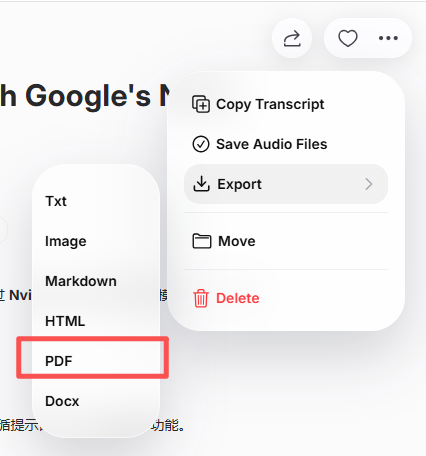
After reviewing and editing the transcript, export it as a PDF. Most platforms allow customization options such as headings, spacing, timestamps, and speaker labels before downloading.
The final PDF transforms your FLV video into a professional, searchable document ready for sharing or archiving.
Best Tools to Convert FLV to PDF
Several AI transcription tools provide quick and easy FLV-to-PDF conversion:
- VOMO – Accurate transcription with clean PDF export
- Otter AI – Suitable for meetings and collaborative workflows
- Descript – Combines video editing with transcription
- Notta AI – Fast transcription with multilingual support
- Open-source ASR tools – Flexible options for developers
Each tool offers different features, but all streamline the FLV-to-PDF process.
Tips for Accurate FLV-to-PDF Transcription
To achieve the best transcription results:
- Use FLV files with clear audio and minimal noise
- Avoid overlapping speech when possible
- Choose the correct language and accent settings
- Review technical terms before exporting
- Format the PDF for readability
These steps help ensure your final PDF is accurate and professional.
Conclusion
Converting FLV to PDF is fast and straightforward with AI transcription technology. By uploading your FLV file, letting the system transcribe the speech, and exporting the result as a PDF, you can turn legacy video content into accessible, reusable documents in minutes.
FLV-to-PDF conversion makes older video files easier to search, store, and share across modern platforms.
