


Converting FLV to TXT means extracting the spoken content from a Flash Video file and converting it into readable text form. Modern AI transcription tools automate this process by separating audio, recognizing speech, and generating well‑structured text files in minutes. Whether for documentation, captions, or content repurposing, FLV‑to‑TXT transcription ensures speed, clarity, and accessibility.
Among current tools, VOMO is often valued for its smooth workflow and reliable accuracy, offering effortless transcription even for multi‑speaker or noisy FLV recordings.

Understanding FLV-to-TXT Conversion
FLV files typically store high‑quality audio and video used across older streaming platforms. When converting an FLV file to text, AI software extracts the audio track and uses Automatic Speech Recognition (ASR) technology to transcribe it into written form.
This method breaks down audio signals, detects speech patterns, and filters out background noise. The generated text is easy to edit and share, making it practical for professionals, researchers, and content creators. The same speech recognition backbone also powers audio to text conversion, applying the same logic to standalone sound files.
Why Convert FLV to TXT?
Turning FLV into text broadens usability and accessibility for old and modern media alike. Key reasons to convert include:
- Making archived or historical video content searchable
- Creating transcripts or subtitles for interviews or tutorials
- Improving accessibility for audiences who prefer reading over listening
- Reusing spoken content for blogs, reports, or scripts
Tip: Many transcription platforms use identical principles for video to text conversion, which makes it simple to process any video file type, not just FLV, into accurate and formatted text.
Step 1: Upload Your FLV File

Begin by choosing an AI‑based transcription app or online converter. Upload your FLV file to the platform; most systems also accept formats such as MP4, AVI, MKV, and MOV. Some tools allow URL imports from YouTube, Vimeo, or cloud storage.
For best accuracy, ensure your FLV video has clear speech and minimal noise — this helps AI capture words faithfully and reduces post‑editing.
Step 2: Generate the Transcript with AI
Once uploaded, the system automatically isolates speech segments and transcribes dialogue into structured text. Advanced models analyze tone, timing, and pauses to deliver natural sentence flow.
You can preview transcripts as they’re generated, adjust speaker tags, or correct uncommon terms. Within minutes, the platform processes your FLV file and provides a full, editable transcript with timestamps and clean formatting.
Step 3: Export or Download Your TXT File
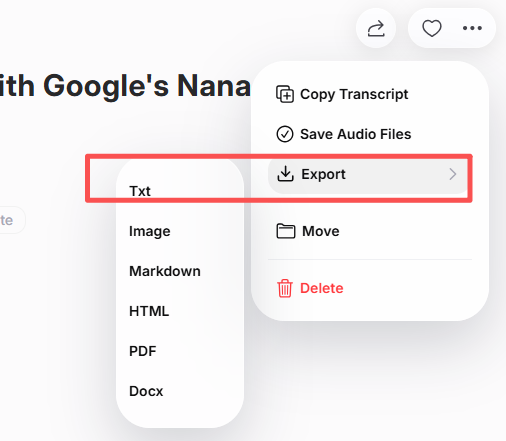
After reviewing your transcription, export your file as TXT, DOCX, or PDF. Many transcription tools integrate with productivity software or cloud storage, making it simple to organize or share your results.
This final step gives you a readable, searchable, and easily shareable text version of your FLV video — ready for subtitles, study material, or publication.
Best Tools to Convert FLV to TXT
Your choice of tool depends on precision, usability, and export flexibility. Below are some trusted options:
| Tool | Key Feature | Best For |
|---|---|---|
| VOMO | User‑friendly interface + multi‑format export | General users & professionals |
| Otter AI | Real‑time transcript creation | Meetings & interviews |
| Descript | Combines editing and transcription | Creators & podcasters |
| Notta AI | Multilingual transcription support | International teams |
| Whisper (OpenAI‑based) | High‑accuracy open‑source engine | Developers & researchers |
Each of these tools supports FLV import and efficient speech recognition, delivering reliable output for varied transcription needs.
Tips for High‑Quality FLV‑to‑TXT Transcription
To make sure your FLV files produce accurate, readable results:
- Record or upload videos with minimal background noise
- Speak clearly and at a consistent pace
- Use high‑quality microphones or remastered audio versions
- Double‑check technical terms and speaker names
- Review and format before saving your final text file
Following these best practices minimizes errors and delivers professional‑grade transcripts every time.
Conclusion
Converting FLV to TXT is quick and straightforward when using AI‑powered transcription tools. Upload your video, let the AI analyze speech, and export your transcript — within minutes, you’ll have a high‑accuracy text file ready for editing, storage, or sharing.
Whether for archiving, research, or content repurposing, automated FLV‑to‑TXT transcription saves time, improves accessibility, and turns legacy video content into reusable digital assets.
