
Best Audio-to-Text Apps for iPhone: Choose by What You Record
Audio to text apps have been absolute lifesavers for me as someone who constantly juggles between meetings, interviews, and note-taking. Whether you’re a student trying to transcribe lectures, a journalist capturing interviews, or a content creator managing ideas on the go, having the right voice-to
The best audio-to-text app for iPhone depends on what kind of audio you have. If you just want to speak into a text field, Apple's built-in Dictation may be enough. If you record short voice notes on iPhone, Voice Memos is now much better than it used to be. If you need meeting notes, searchable transcripts, summaries, and exports, you will probably outgrow the built-in tools and want a workflow like VOMO Audio to Text or M4A to Text.
The mistake most roundup posts make is treating all "speech to text" jobs as the same. On iPhone, they are not the same at all.
Quick Answer
What you are trying to do | Best starting point | Why |
|---|---|---|
Speak directly into Messages, Notes, or Docs | Apple Dictation | Fast built-in voice typing |
Transcribe an iPhone voice memo | Apple Voice Memos or VOMO M4A to Text | Built-in transcript for simple use, stronger workflow for reusable notes |
Record audio inside a note | Apple Notes | Audio and transcript live together in one note |
Get live captions from surrounding audio | Live Captions | Real-time accessibility captions on supported iPhones |
Turn a long recording into summary + action items | Transcript, timestamps, summary, key takeaways, Ask AI, exports | |
Transcribe meetings with collaboration | Otter or Notta | Team-focused recording and meeting workflows |
Transcribe a file that needs careful review | Rev | AI plus human-transcription path |
First, Pick the Right iPhone Use Case
Before you choose an app, decide which of these jobs you are actually doing:
Job | What matters most |
|---|---|
Voice typing | Speed and convenience |
Voice memo transcription | Clean transcript and easy reuse |
Lecture or meeting notes | Summary, action items, search, export |
Live listening support | Real-time captions |
Interview or research recording | Accuracy, timestamps, quote review |
File upload workflow | Format support, long-recording handling, exports |
That is why the "best app" is different for a student, a manager, a journalist, and someone dictating texts while walking to the train.
1. Apple Dictation: Best for Speaking Directly Into Text
Apple Dictation is the best option when you do not have a recording yet and do not need one. It is for turning live speech into typed text inside apps.
Use it when:
- You are writing messages, notes, reminders, or short drafts.
- You want the fastest built-in option.
- You do not need an audio file, transcript archive, or summary.
Skip it when:
- You already have a voice memo or meeting recording.
- You need timestamps, export formats, or post-call notes.
- You want to ask AI questions about what was said.
This is a voice input tool, not a full transcription workspace.
2. Apple Voice Memos: Best Built-In Recorder for Simple Transcripts
Voice Memos is now a real transcription option for many iPhone users, not just a basic recorder. Apple says you can view a transcription while recording, copy part of the transcript, copy the full transcript, and search recordings by transcript text.
That makes it a strong choice for:
- Personal voice notes
- Quick lecture captures
- Short interviews
- Brain dumps you want to search later
But Voice Memos is still best for lightweight use. Once you need structured summaries, action items, folders, export formats, or a cleaner workflow for long recordings, you will likely want something beyond the built-in transcript.
If your recording is already in the usual iPhone format, start with [M4A to Text](/tools/m4a-to-text). If you want a more general workflow for imported recordings, use [Audio to Text](/tools/audio-to-text).
3. Apple Notes: Best When You Want Audio and Notes Together
Apple Notes is a different kind of transcription tool. Instead of keeping recordings in a separate recorder app, it lets you record audio inside a note and see the transcript there. Apple also says you can search the transcript and copy text out of it.
Use it when:
- The recording belongs with written notes.
- You want one note per class, meeting, or brainstorm.
- You already live in Apple Notes.
Skip it when:
- You need a better export workflow.
- You want stronger AI follow-up over long recordings.
- You need a tool designed around transcript management.
For iPhone users, this is one of the cleanest "good enough" built-in options.
4. Live Captions: Best for Real-Time Listening Support
Live Captions on iPhone is best when the goal is to follow spoken audio as it happens. Apple says it can provide real-time transcription for audio in apps such as FaceTime or Podcasts, as well as live conversations around you.
Use it when:
- You need accessibility support.
- You want to follow speech in real time.
- You are not building a transcript library for later editing.
Skip it when:
- You need a polished transcript after the fact.
- You want summaries, exports, or reusable meeting notes.
- You need something for long uploaded files.
It is useful, but it is not the same product category as a file transcription app.
5. VOMO: Best for Turning iPhone Recordings Into Usable Notes
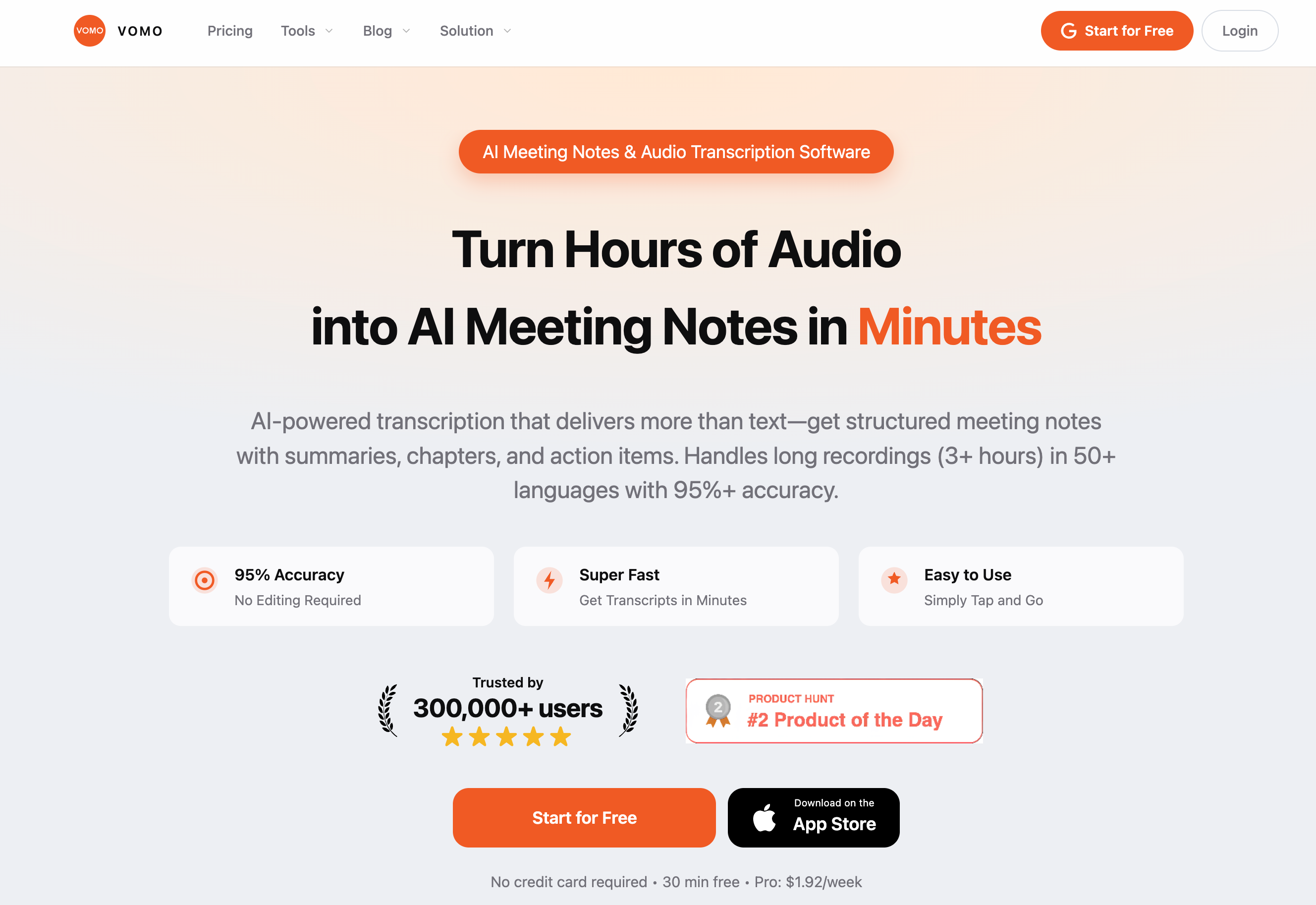
VOMO is the better fit when you care about what happens after the transcript. If your iPhone recording needs to become notes, decisions, action items, quotes, or a follow-up email, VOMO is much closer to that workflow than a basic recorder.
A strong iPhone workflow looks like this:
- Record in VOMO or save the audio in Voice Memos.
- Upload or import the file into [M4A to Text](/tools/m4a-to-text) or [Audio to Text](/tools/audio-to-text).
- Review the transcript with timestamps.
- Use the summary, key takeaways, and action items.
- Ask follow-up questions with Ask AI.
- Copy, export, or share the result.
This is especially useful for:
- Voice memos you want to clean up
- Client calls
- Sales calls
- HR interviews
- Lectures
- Research recordings
- Long-form meeting notes
Why VOMO fits iPhone users well:
- iPhone recordings often start as M4A voice memos, so [M4A to Text](/tools/m4a-to-text) is a natural entry point.
- You can move from transcript to summary instead of stopping at raw text.
- Ask AI works on the transcript context, which is much better than pasting fragments around by hand.
- Export and sharing workflows matter once the recording is not just for you.
Use [Speech to Text](/tools/speech-to-text) if you need a more general speech transcription path, or [Video to Text](/tools/video-to-text) if the iPhone recording is a video rather than audio only.
6. Otter: Best for Meeting-Heavy Teams
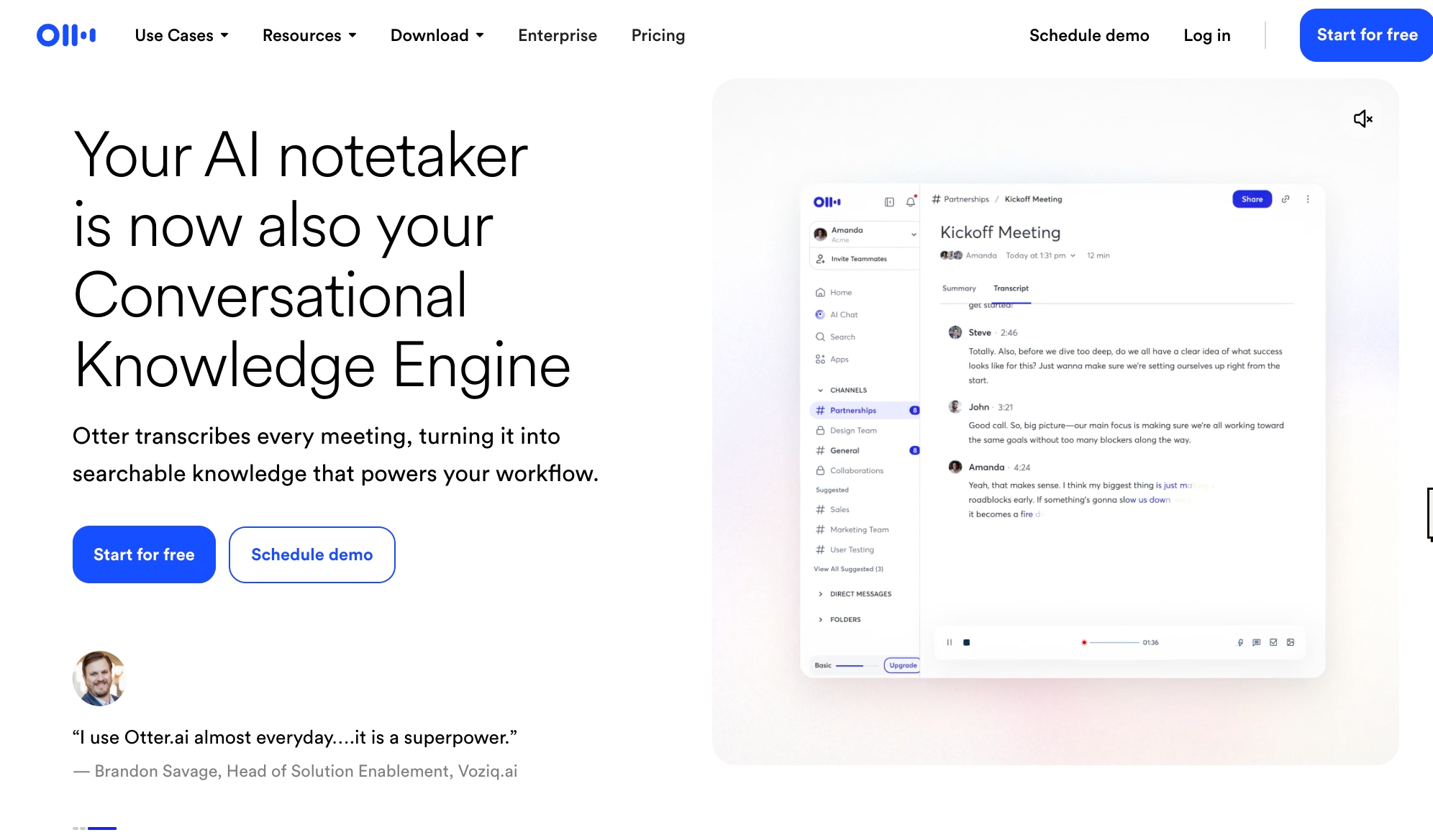
Otter is worth considering when your main need is meeting transcription and collaboration rather than solo voice memos. It supports importing audio and video files from mobile, and it is built around searchable transcripts, meeting notes, and shared team workflows.
Use it when:
- Your work is meeting-heavy.
- You want shared notes and a collaboration layer.
- You regularly import recordings rather than just dictate text.
Watch out for:
- It may feel like too much tool if you only want personal voice memo transcription.
- Plan limits and import rules can shape the practical experience.
7. Notta: Best for Multilingual Mobile Transcription
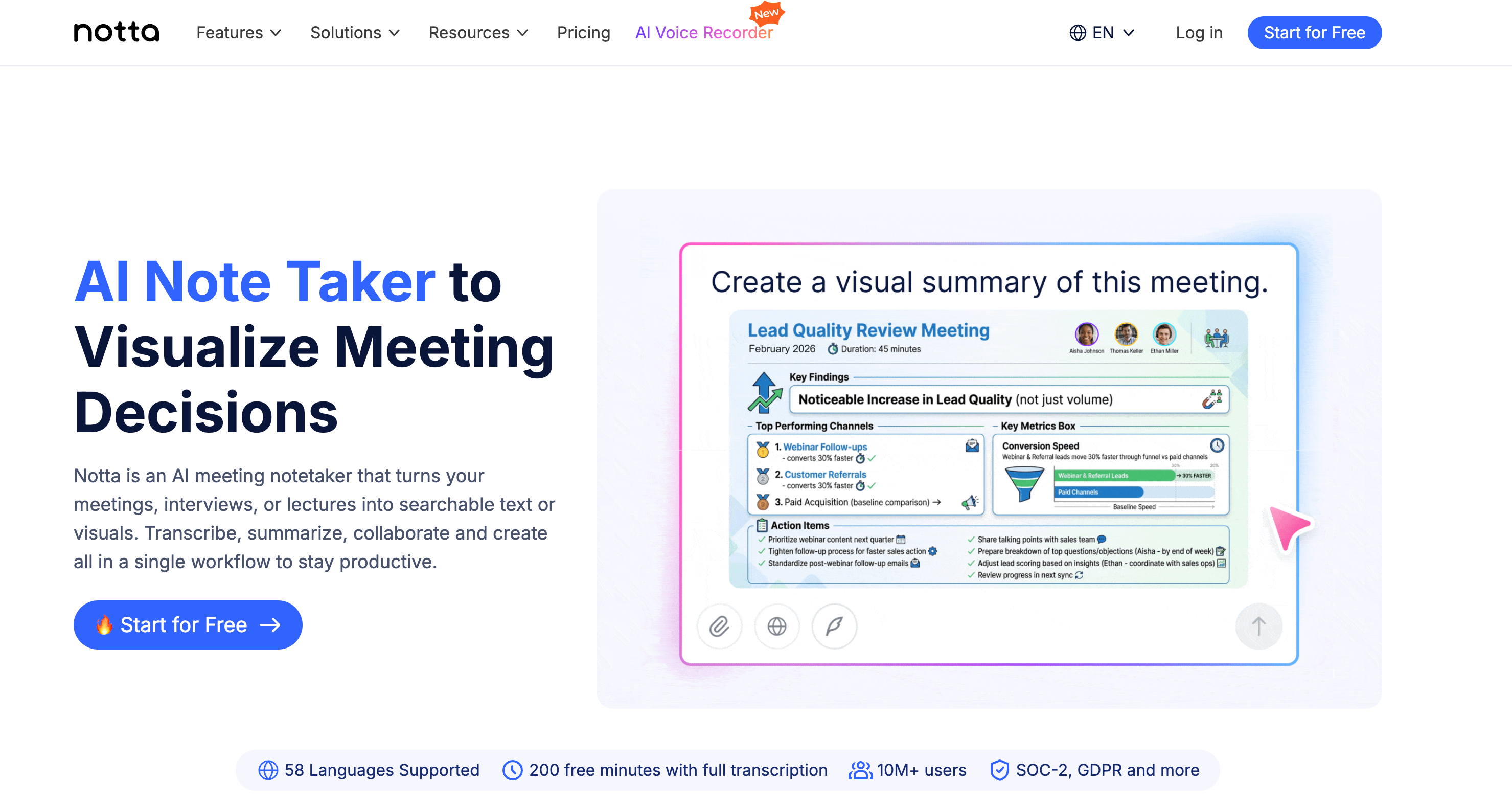
Notta is a good fit if you want a mobile-first transcription app that supports real-time recording, uploaded files, and exports. It is broader than a simple recorder and more transcription-focused than Apple's built-in apps.
Use it when:
- You switch between live recording and file import.
- You need multilingual transcription.
- You want an iPhone app built around transcript handling.
Watch out for:
- Notta says its mobile recording and transcription features require an internet connection.
- You still need to compare whether its notes workflow is strong enough for your specific use case.
8. Rev: Best When the Transcript Needs Human Review
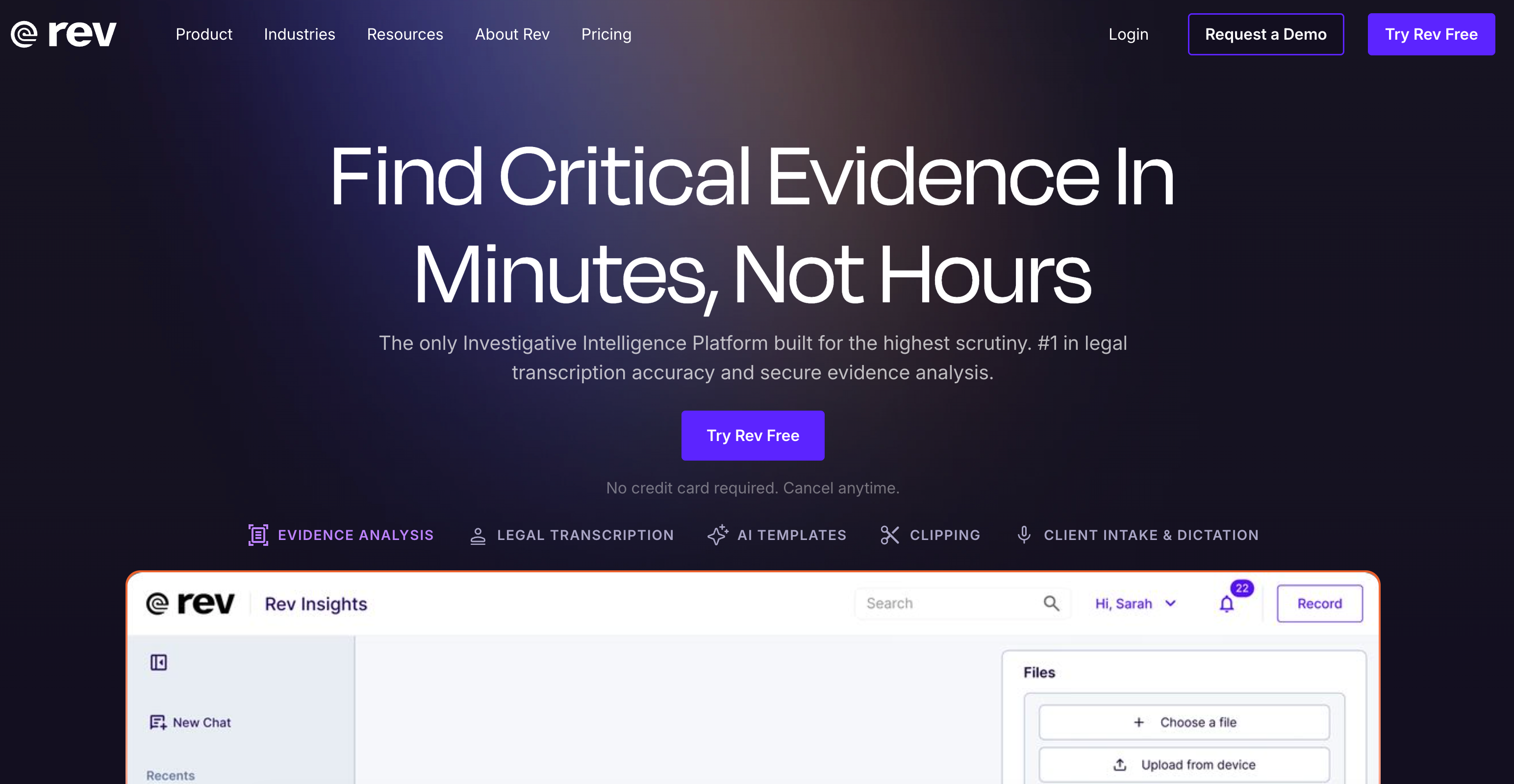
Rev is the right category to compare when "good enough AI text" is not enough. Rev's mobile app focuses on recording from your phone and ordering transcripts, including cases where human transcription matters.
Use it when:
- Exact wording matters more than speed.
- You are working with interviews, research, journalism, or sensitive business conversations.
- You want the option to move from mobile capture to human-reviewed output.
Watch out for:
- Human transcription is more expensive than automated transcription.
- Even with strong transcripts, you should still review names, numbers, and sensitive details.
Best iPhone App by Situation
Situation | Best choice |
|---|---|
Voice typing into an app | Apple Dictation |
Simple personal voice memo transcript | Apple Voice Memos |
Audio attached to written notes | Apple Notes |
Real-time spoken captions | Live Captions |
iPhone voice memo to summary | VOMO M4A to Text |
Long recording to transcript and action items | |
Team meeting notes | Otter or Notta |
Human-reviewed transcript | Rev |
A Better Workflow for iPhone Voice Memos
If you use iPhone Voice Memos a lot, this is the practical workflow I would recommend:
- Capture the recording in Voice Memos or VOMO.
- If you only need the words once, the built-in Apple transcript may be enough.
- If you need reusable notes, upload the memo to [M4A to Text](/tools/m4a-to-text).
- Review timestamps, names, and key details.
- Turn the result into summary, key takeaways, and action items.
- Export or share the cleaned-up notes.
This is where many iPhone users save time: not at the recording step, but at the "what do I do with this audio now?" step.
FAQ
What is the best free audio-to-text app for iPhone?
For direct voice typing, Apple Dictation is the simplest free option. For basic recorded transcripts, Apple Voice Memos and Apple Notes are much better than many users realize. If you need summaries, timestamps, or AI follow-up, compare those built-in tools with a dedicated workflow such as VOMO.
Can iPhone transcribe Voice Memos natively?
Yes. Apple says Voice Memos can show a transcript while recording, let you view transcript text later, copy part or all of the transcript, and search by transcript text.
What is the best app for transcribing iPhone voice memos?
If you only need a lightweight transcript, Apple Voice Memos may be enough. If you need a better workflow for summaries, action items, and exports, use M4A to Text.
What is the best iPhone app for meeting transcription?
For personal recordings that need usable notes afterward, VOMO is a strong fit. For meeting-heavy collaborative workflows, Otter and Notta are worth comparing.
Does Apple Notes transcribe audio on iPhone?
Yes. Apple says Notes can record audio in a note and transcribe the spoken words. On supported iPhones and supported languages, this makes Notes a strong built-in option for people who want audio and notes together.
Is Live Captions the same as a transcription app?
No. Live Captions is for real-time spoken audio support. It is helpful for following conversations and media, but it is not the same as a full transcription workflow for files, summaries, exports, and post-recording analysis.
Final Recommendation
If you only need to dictate text, use Apple Dictation. If you want a built-in transcript for simple recordings, use Voice Memos or Notes. If you need real-time listening support, use Live Captions.
If you want iPhone recordings to turn into real notes you can search, summarize, share, and act on, start with VOMO M4A to Text or VOMO Audio to Text. That is the point where iPhone speech-to-text becomes an actual workflow instead of just text on a screen.
VOMO FOR MEETINGS
Transform Your Meetings with VOMO
Experience seamless meeting recording, highly accurate transcription, and intelligent summarization. Let VOMO be your dedicated note-taker while you focus on what matters most.