
How to Extract Audio from a YouTube Video Safely
Embedding a YouTube video in PowerPoint is simple and highly effective for making your presentations more engaging. You can insert videos directly from YouTube without downloading them — allowing your audience to watch content in real time from within your slides.Whether you’re teaching, pitching a
Before you extract audio from a YouTube video, ask what you actually need. If your goal is to study, quote, summarize, or search what was said, you may not need an audio file at all. A transcript is usually faster, smaller, and easier to use.
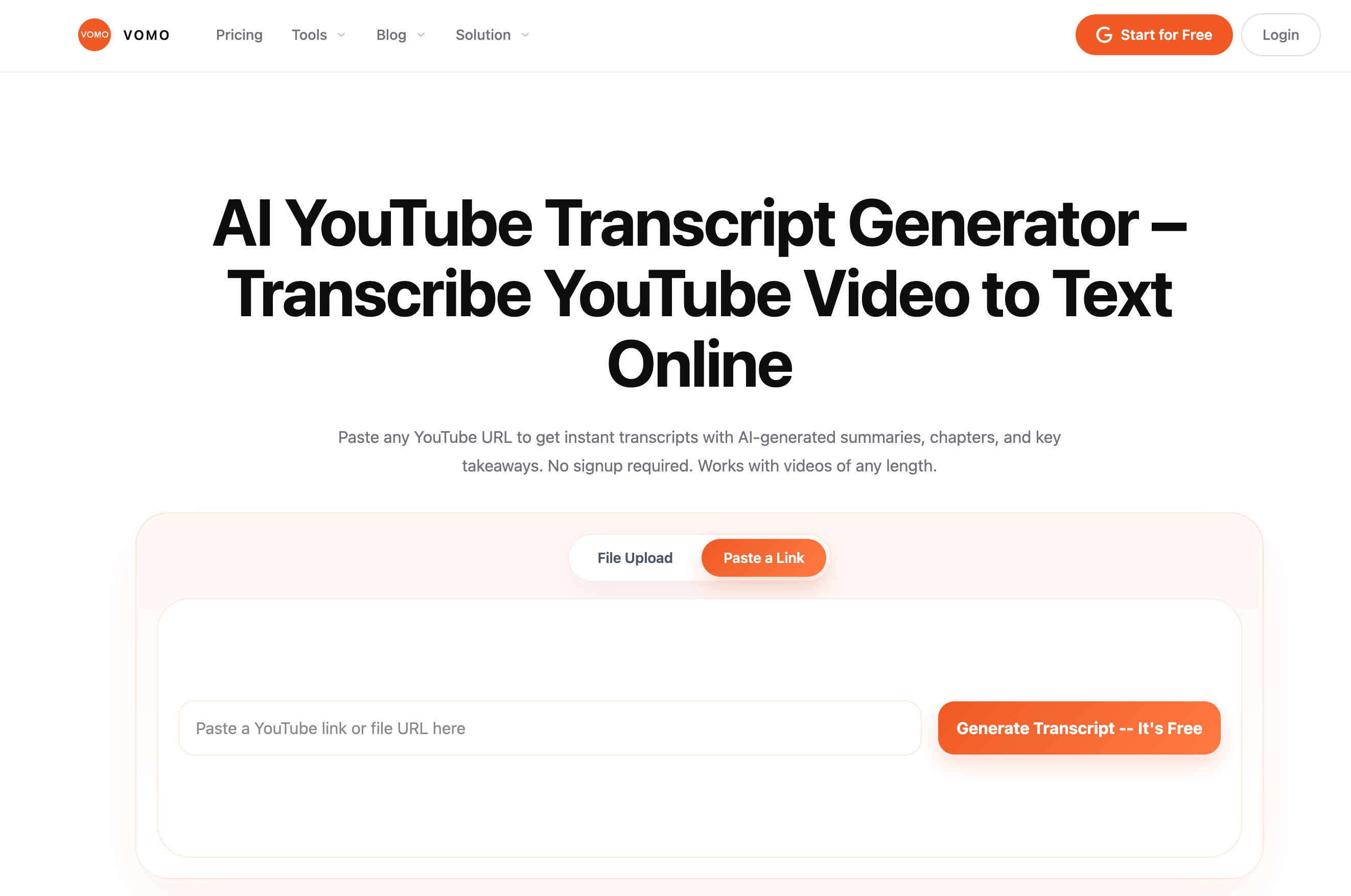
For spoken content, start with VOMO YouTube Transcript when the video has usable captions or transcript data. If you already have a video file that you own or have permission to process, use Video to Text or MP4 to Text.
Only extract or process YouTube audio when you own the content, have permission, or are otherwise allowed by YouTube's terms and applicable law.
First: Match the Real Goal
Most people searching this topic are not trying to become audio engineers. They want one of these outcomes:
Your real goal | Best path |
|---|---|
Summarize a YouTube lecture | Use YouTube Transcript first |
Turn a video into notes | Transcript -> summary -> key takeaways -> action items |
Quote an interview | Timestamped transcript, then verify quotes |
Use audio from your own video | Download your own file or use the original source |
Convert an MP4 you own into audio | Extract audio from the MP4, then use Audio to Text if needed |
Transcribe an MP3 | Use MP3 to Text |
Listen offline inside YouTube | Use official YouTube download/offline features when available |
If the information matters more than the sound file, do not start with MP3 extraction. Start with the transcript.
What You Should Know About YouTube Rules
YouTube's Terms of Service restrict downloading or using content outside the service unless YouTube expressly authorizes it or you have permission from YouTube and the rights holder. That is why random "YouTube to MP3" websites are risky: they can create copyright, terms, privacy, and malware problems.
There are safer scenarios:
- You are processing your own uploaded video.
- You still have the original video file.
- You have permission from the rights holder.
- You are using an official YouTube offline feature for viewing/listening inside YouTube.
- You only need a transcript from available captions.
Source: YouTube Terms of Service.
If You Only Need the Words: Use a Transcript
For lectures, podcasts, interviews, webinars, product demos, and long explainers, extracting the audio is often an unnecessary middle step.
Use this workflow instead:
- Paste the YouTube link into VOMO YouTube Transcript.
- If usable captions or transcript data are available, review the timestamped transcript.
- Generate a summary, key takeaways, and action items.
- Ask follow-up questions with Ask AI.
- Copy, export, or share the notes.
This avoids storing a large media file and gives you something searchable immediately. Not every YouTube video is supported, because support depends on caption or transcript availability.
If You Own the Video: Extract Audio from the Source File
If the video is yours, use the original MP4/MOV file when possible. It is usually cleaner than anything recovered from YouTube.
If you no longer have the file, YouTube provides official ways to download videos you uploaded in some cases. Use that route before trying third-party downloader sites. You can also read the broader guide: How to Download Videos from YouTube Safely.
Once you have a permitted video file, you can extract audio with normal media software or command-line tools. For example, with FFmpeg:
ffmpeg -i input.mp4 -vn -acodec mp3 output.mp3
That command removes the video track and creates an MP3 audio file. Use it only for files you are allowed to process.
If You Already Have an Audio File: Transcribe It
After extraction, the next question is usually not "How do I keep this MP3?" It is "How do I use what was said?"
Audio file | Recommended workflow |
|---|---|
MP3 | MP3 to Text |
M4A | M4A to Text |
WAV or other audio | Audio to Text |
Speech recording | Speech to Text |
MP4 video file | MP4 to Text |
VOMO can turn the recording into a transcript and generate an editable summary, key takeaways, and action items. You can ask questions about the transcript with Ask AI, then export or share the result.
When Audio Extraction Makes Sense
Audio extraction is useful when you have a permitted source file and the audio itself matters.
Use case | Why extraction helps |
|---|---|
Editing your own video | You need the voice track or music bed separately |
Cleaning audio | You want to reduce noise before reuse |
Podcast repurposing | You want an audio-only version from your own video |
Archiving your recordings | You want a smaller file than the full video |
Transcription from a local file | You need audio-to-text from a permitted file |
If your use case is simply "I want notes," skip extraction and use a transcript workflow.
Avoid These Mistakes
Mistake | Better approach |
|---|---|
Using random YouTube-to-MP3 websites for any video | Use official or permission-based workflows |
Extracting audio just to summarize speech | Use YouTube Transcript first |
Assuming Premium downloads are MP3 exports | Treat them as offline playback inside YouTube |
Forgetting copyright or consent | Process only content you are allowed to use |
Keeping only the summary | Save the transcript for verification |
FAQ
Can I extract audio from any YouTube video?
No. Only extract or process audio when you own the video, have permission, or are allowed under YouTube's terms and applicable law.
Is YouTube Premium the same as downloading an MP3?
No. YouTube's official offline features are for playback inside YouTube. They are not general MP3 export tools.
What if I only need a summary of the video?
Use VOMO YouTube Transcript when transcript data is available. It is usually faster than extracting audio and converting it later.
What if the YouTube transcript is not available?
If you have permission to use the video file, process the file with Video to Text, MP4 to Text, or Audio to Text after extracting the audio.
What is the safest way to extract audio from my own YouTube video?
Use your original source file if you still have it. If not, use YouTube's official creator download options when available, then extract audio locally from the permitted file.
Final Recommendation
Do not start with a YouTube-to-MP3 converter just because you need information from a video.
Use this decision:
Need notes or quotes? -> YouTube Transcript.
Own or have permission to use the file? -> extract audio locally -> Audio to Text or MP3 to Text.
VOMO FOR MEETINGS
Transform Your Meetings with VOMO
Experience seamless meeting recording, highly accurate transcription, and intelligent summarization. Let VOMO be your dedicated note-taker while you focus on what matters most.