
Can You Upload Videos to ChatGPT? Yes — Here's How (2026)
Uploading and analyzing video with ChatGPT is possible—but not always straightforward. In 2026, the real challenge isn’t just uploading a file. It’s understanding how to get accurate, structured insights from video content efficiently.
If you are trying to upload a video to ChatGPT, here is the honest answer: ChatGPT file upload can be useful, but it is not always a reliable video workflow. Availability can depend on your account, plan, model, workspace settings, file type, file size, and current product rollout.
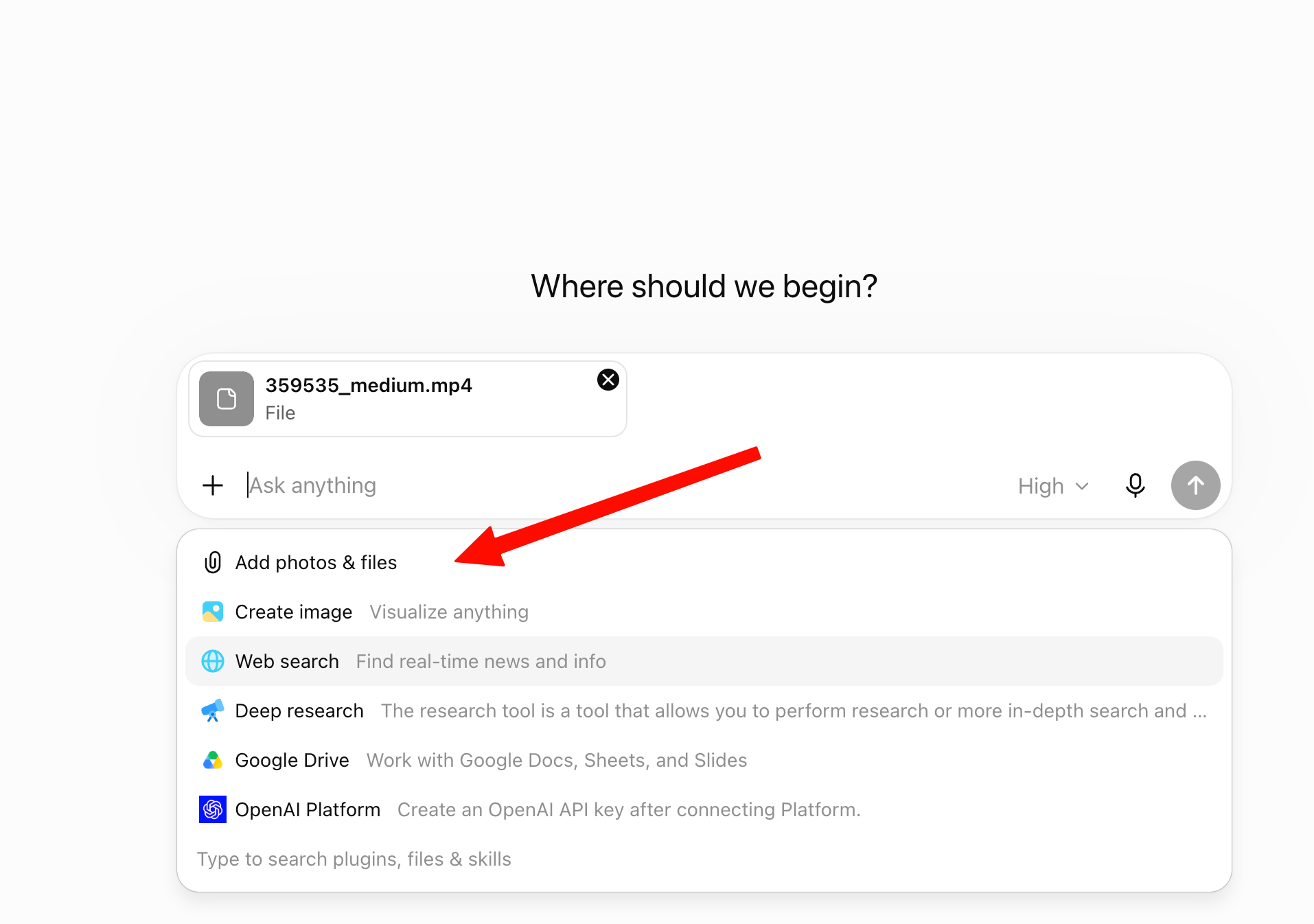
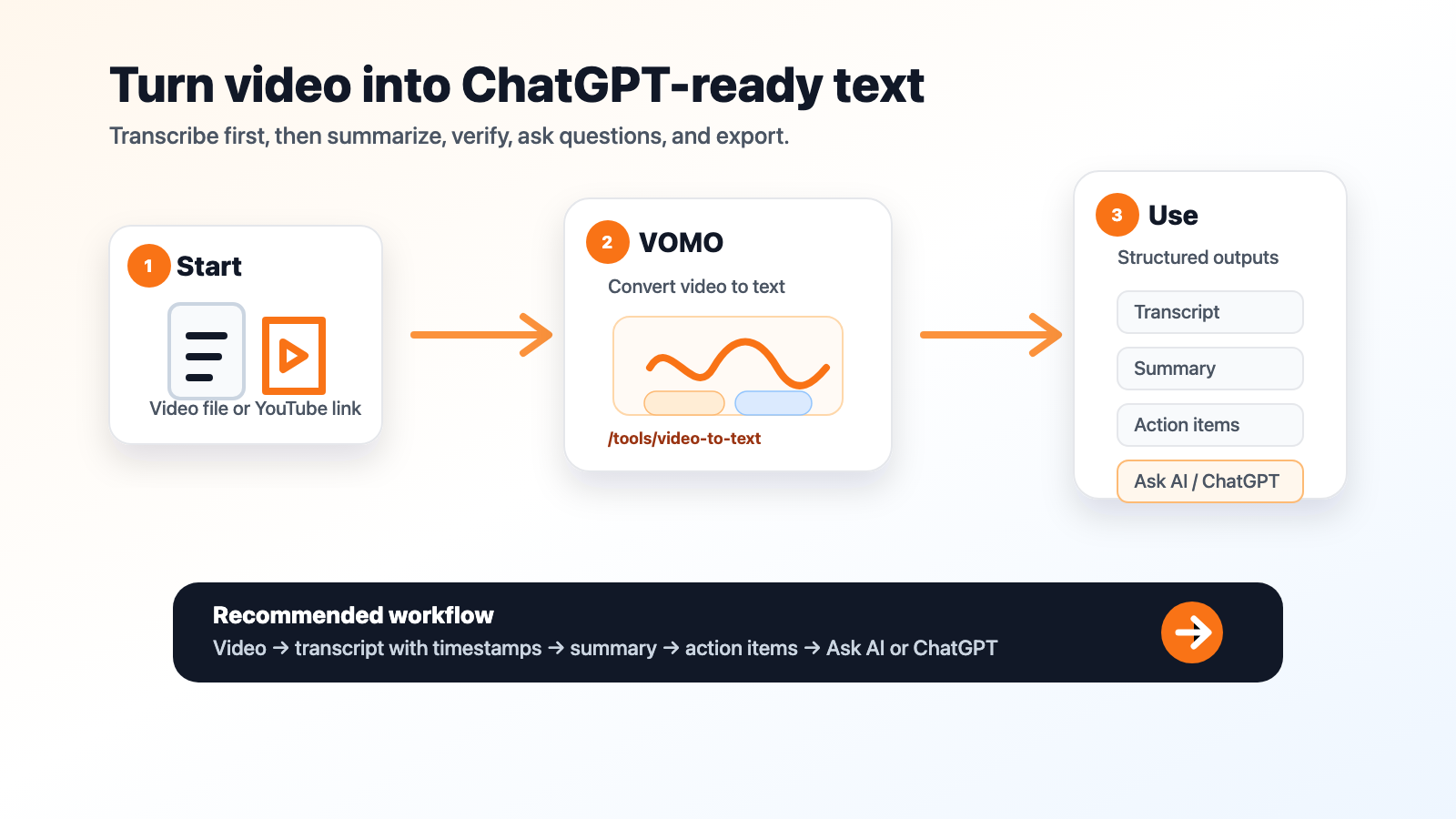
For a short clip, you can try uploading it directly if your ChatGPT interface allows it. For a meeting, lecture, interview, webinar, podcast, or YouTube video, the better workflow is usually:
Video -> transcript with timestamps -> AI summary -> key takeaways -> action items -> Ask AI or ChatGPT.
If you already have a video file, use VOMO's Video to Text tool. If the video is on YouTube, start with the YouTube Transcript tool. Once you have a transcript, ChatGPT and VOMO can give you much better answers because the important content is already in text.
Quick Answer
You may be able to upload a video file to ChatGPT in some situations, but it is not the workflow I would rely on for serious work. OpenAI's file upload experience is strongest for documents, spreadsheets, presentations, images, and other supported files. Video analysis can vary by account and product surface, and long videos are especially likely to create problems.
The most reliable method is to convert the video into text first, then ask ChatGPT or VOMO to summarize, analyze, rewrite, or extract action items from the transcript.
Your goal | Best workflow |
|---|---|
Test a short clip | Try direct upload if ChatGPT accepts the file |
Get an accurate transcript | |
Transcribe an MP4 file | Use MP4 to Text |
Summarize a YouTube video | |
Create meeting notes | Transcribe first, then generate summary and action items |
Analyze a long video | Use a transcript-first workflow |
Why Uploading Video to ChatGPT Can Be Frustrating
The confusing part is that "file upload" and "video upload" are not always the same thing. You might see an attachment button in ChatGPT, but that does not mean every video file will upload, process cleanly, and return a useful answer.
Common issues include:
- The upload button is not available in your current chat.
- The file type is not supported in your account or app.
- The video is too large or too long.
- The audio is noisy, quiet, or has multiple speakers.
- ChatGPT returns a general summary without timestamps or quotes.
- You cannot easily verify where the answer came from in the video.
That last point matters. A vague video summary might look fine at first, but if you need exact quotes, decisions, names, tasks, or timestamps, you need a transcript you can inspect.
How to Try Uploading a Video to ChatGPT
If you still want to test direct upload, use a short file first.
- Open ChatGPT.
- Look for the attachment, plus, or paperclip button.
- Upload a short video file if the interface accepts it.
- Wait for the file to finish processing.
- Ask for a specific output.
- Check the answer against the original video.
Use a focused prompt:
Analyze this video and return:
1. A 5-sentence summary
2. The main topics discussed
3. Action items
4. Important quotes or claims
5.Anything that needs human review
If the upload fails, the summary feels shallow, or you need timestamps, stop trying to force the video into ChatGPT. Convert the video to text first.
The Better Workflow: Convert Video to Text First
For most real use cases, a transcript-first workflow is faster, cleaner, and easier to trust.
Step | What to do | Why it helps |
|---|---|---|
1. Upload or import the video | Add your video to VOMO | Keeps the workflow focused on transcription first |
2. Let processing finish | The file moves through an in-progress state | You can track the transcription process |
3. Review the transcript | Check text with timestamps | Easier to verify quotes and important moments |
4. Use the AI summary | Review summary, key takeaways, and action items | Gives you a useful first draft immediately |
5. Ask follow-up questions | Use Ask AI or paste the transcript into ChatGPT | The AI has clear context to work from |
6. Export or share | Copy, export, or share the result | Easy to use in Docs, email, reports, or ChatGPT |
This is the key difference: ChatGPT is useful once the content is readable. VOMO helps turn the video into readable, searchable text first.
Why Transcripts Produce Better AI Answers
AI tools work better when the source material is clear. A transcript gives the model a structured input instead of asking it to interpret a long raw video all at once.
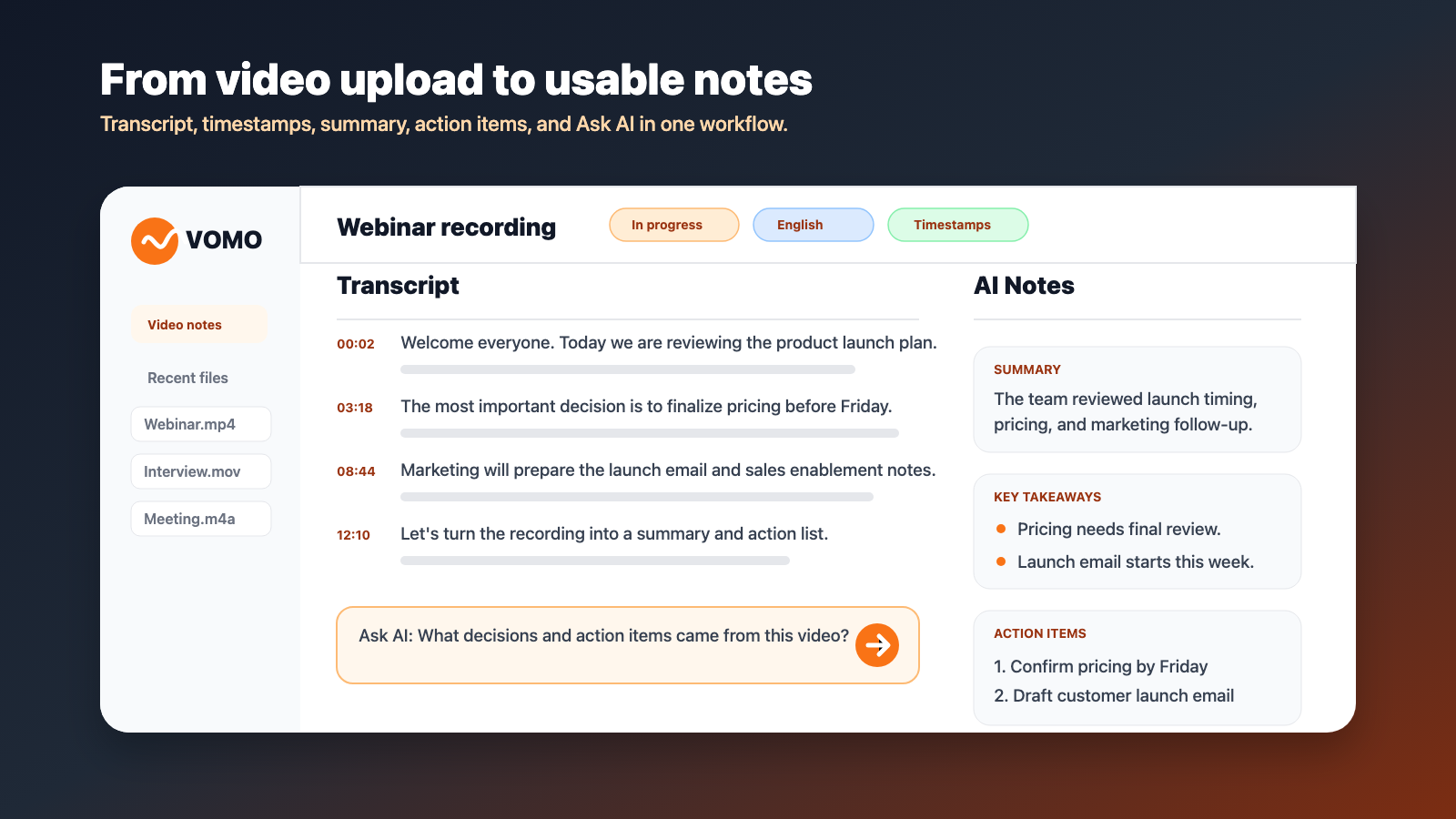
With VOMO, you can prepare a cleaner source before analysis:
VOMO feature | Why it matters |
|---|---|
Language selection | Choosing the language before transcription can improve accuracy |
Timestamps | Helps you find and verify important moments |
Editable summary | Lets you clean up the output before sharing |
Key takeaways | Captures detailed points, not just a short recap |
Action items | Useful for meetings, interviews, sales calls, and classes |
Summary instructions | Lets you guide the output before processing |
Templates | Helps format notes for workflows like sales or HR interviews |
Ask AI | Lets you ask questions with transcript context already included |
Export and sharing | Makes it easier to move notes into other tools |
For example, instead of asking ChatGPT, "What is this 45-minute video about?", you can ask:
Using this transcript, extract:
1. The main argument
2. Supporting evidence
3. Examples mentioned
4. Action items
5. Quotes worth saving
6.Sections that need fact-checking
That prompt works better because the AI is reading text, not guessing from a difficult upload.
ChatGPT Direct Upload vs Transcript-First Workflow
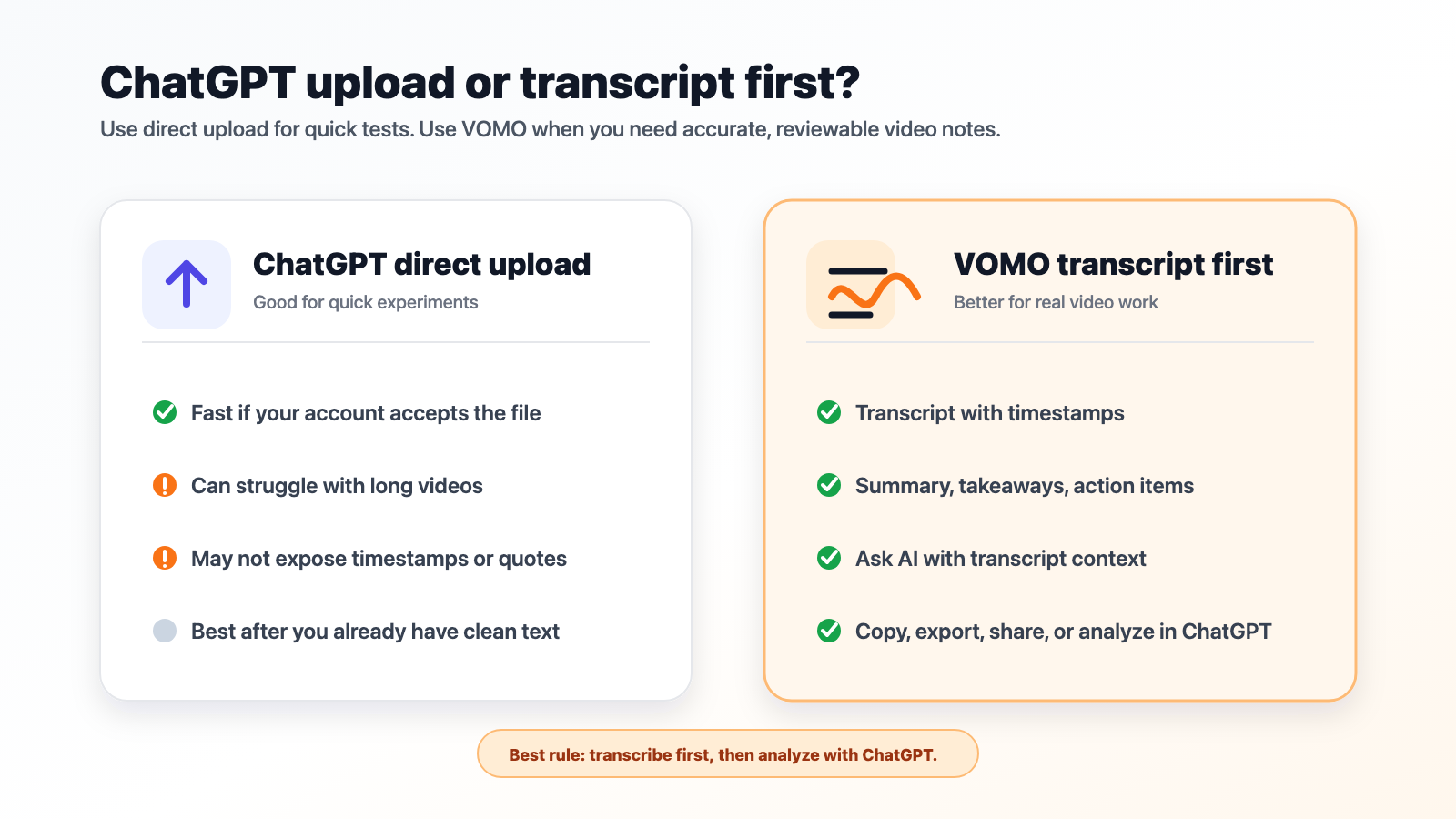
Feature | ChatGPT direct upload | VOMO transcript-first workflow |
|---|---|---|
Best for | Quick tests with short files | Meetings, lectures, interviews, webinars, podcasts, and YouTube videos |
Reliability for long videos | Can be inconsistent | Built for transcription workflows |
Transcript access | May be limited or unavailable | Transcript is the core output |
Timestamps | Not always clear | Built into the workflow |
Summary quality | Depends heavily on the prompt | Summary, key takeaways, and action items are generated |
Follow-up questions | You may need to provide more context | Ask AI uses transcript context by default |
Export | Depends on chat output | Copy, export, share, and organize files |
Best next step | Use for extra analysis after transcription | Use first to prepare the source material |
The practical rule is simple: use VOMO to create the transcript and notes, then use ChatGPT for extra writing, rewriting, brainstorming, or deeper analysis.
What About YouTube Videos?
If your video is on YouTube, do not start by downloading the video. Start with the transcript.
Use VOMO YouTube Transcript when the video has usable captions or transcript data. From there, you can summarize the video, extract key points, create study notes, or ask follow-up questions.
Important limitation: not every YouTube video is supported. Transcript workflows depend on whether usable captions or transcript data are available. If a YouTube transcript is not available, use a file-based workflow only when you own the content, have permission, or are otherwise allowed to use it.
Best Use Cases for This Workflow
Use case | Recommended path |
|---|---|
Meeting recording | Upload to Video to Text, then extract decisions and action items |
Class or lecture | Transcribe, summarize, then create study notes |
Interview | Generate a timestamped transcript, then pull quotes and themes |
Podcast | Transcribe first, then create show notes or clips outline |
Webinar | Turn the recording into a summary, takeaways, and follow-up email |
YouTube research | Use YouTube Transcript, then ask questions about the transcript |
MP4 file | Use MP4 to Text], then export or analyze the transcript |
Prompts to Use After You Have the Transcript
Once your transcript is ready, you can use VOMO Ask AI or paste the transcript into ChatGPT.
Summary Prompt
Summarize this video transcript into:
1. A short overview
2. 7 key takeaways
3. Action items
4. Important quotes
5. Questions I should follow up on
Meeting Notes Prompt
Create meeting notes from this transcript. Include:
1. Decisions
2. Action items
3. Owners and deadlines if mentioned
4. Risks or blockers
5. A follow-up email draft
Content Repurposing Prompt
Turn this video transcript into:
1. A blog outline
2. A LinkedIn post
3. 5 short clips or highlight ideas
4. A newsletter summary
5. FAQ questions based on the discussion
If you use VOMO Ask AI, you do not need to paste the full transcript manually because the transcript context is already available.
FAQ
Can I upload an MP4 to ChatGPT?
Sometimes the interface may allow file uploads, but MP4 analysis is not a dependable workflow for every user or every file. For a reliable transcript, use [MP4 to Text](/tools/mp4-to-text) first.
Why can't I upload a video to ChatGPT?
The feature may not be available in your current account, model, plan, workspace, browser, or app. The file may also be too large, too long, or unsupported.
Can ChatGPT summarize a video?
Yes, if it has usable input. The most reliable way is to give ChatGPT a transcript instead of depending on direct video upload.
Can ChatGPT transcribe a long video?
For long videos, use a transcription tool first. Long recordings need timestamps, review, and structured output. A raw upload may fail or produce a summary that is hard to verify.
Is VOMO better than ChatGPT for video transcription?
For transcription workflows, yes. VOMO is built to convert audio and video into text, timestamps, summaries, key takeaways, action items, and notes. ChatGPT is better used after the transcript exists.
Does VOMO support YouTube video summaries?
Yes, when usable captions or transcript data are available. Not every YouTube video is supported, so availability depends on the video's transcript/caption data.
Should I upload private videos to AI tools?
Be careful with confidential, legal, medical, HR, financial, or customer recordings. Make sure you have permission, review the tool's privacy settings, and check important details before sharing the output.
Final Recommendation
If you only need to test a short clip, try uploading it to ChatGPT and see whether your account supports it.
If you need a useful, reviewable result, use the transcript-first workflow:
Video -> VOMO Video to Text-> transcript with timestamps -> summary/key takeaways/action items -> Ask AI or ChatGPT -> export/share.
That gives you a cleaner source, better summaries, easier fact-checking, and a workflow you can repeat for real videos.
VOMO FOR MEETINGS
Transform Your Meetings with VOMO
Experience seamless meeting recording, highly accurate transcription, and intelligent summarization. Let VOMO be your dedicated note-taker while you focus on what matters most.