Creating a Word transcript from a video is simple with modern AI tools. You upload the video, let the system convert the spoken content into text, and then export the transcript as an editable Word document. This process takes only minutes and works for interviews, lectures, meetings, and online videos, making it an efficient alternative to manual transcription.
Gereedschappen zoals VOMO simplify the process by automatically converting video speech into clean, editable Word documents in just a few clicks.

What Does Creating a Word Transcript from Video Mean?
Creating a Word transcript from video means extracting spoken dialogue from a video file and converting it into written text that can be edited in Microsoft Word. Instead of replaying the video and typing manually, AI-powered tools analyze the audio track and generate a structured document automatically.
This method is widely used for:
- Educational recordings
- Zakelijke bijeenkomsten
- Online cursussen
- Interviews and research
- Hergebruik van inhoud
The final output is a clean, searchable Word document that can be edited, shared, or archived.
Why Convert Video into a Word Transcript?
Turning video content into a Word document offers several practical advantages:
- Saves hours of manual typing
- Makes content searchable and editable
- Improves accessibility for readers
- Helps reuse content for blogs, reports, or training
- Allows easy formatting and collaboration
Once in Word format, the content becomes far more flexible than a video file.
Step 1: Upload Your Video to a Transcription Tool
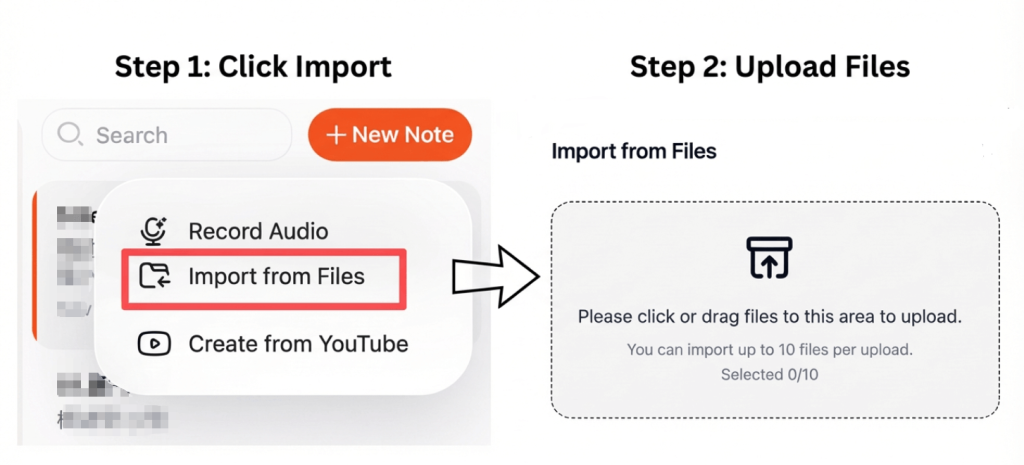
Start by selecting a transcription platform that supports video uploads such as MP4, MOV, or MKV. Most tools allow direct uploads or imports from cloud storage.
For best results:
- Use videos with clear speech
- Reduce background noise
- Ensure speakers talk at a steady pace
High-quality audio leads to more accurate transcription results.
Step 2: Convert Video to Text Automatically
After uploading the file, the tool processes the audio track and converts speech into written form using AI speech recognition. This process is commonly referred to as video naar tekst conversie.
Advanced platforms can:
- Meerdere luidsprekers detecteren
- Leestekens automatisch toevoegen
- Structure text into readable paragraphs
This step usually takes only a few minutes, even for longer videos.
Step 3: Edit and Export as a Word Document
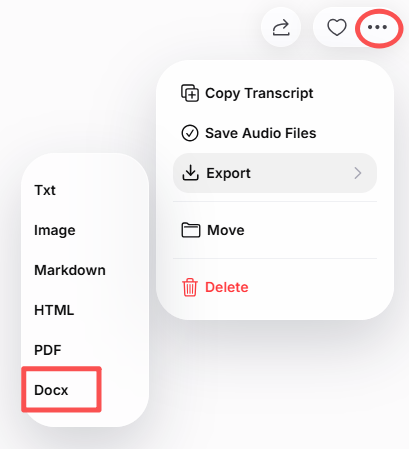
Once the transcript is generated, review it for accuracy and formatting. Most tools allow you to make edits directly before exporting.
You can then download the file as a Word (.docx) document, making it easy to:
- Edit and format text
- Add headings or notes
- Share with teammates
- Store for documentation
Some tools also allow exporting in multiple formats, including PDF and TXT.
Best Tools to Create Word Transcripts from Video
Several reliable tools can help you convert video into editable Word documents:
- VOMO – Fast transcription with clean Word export
- Otter AI – Great for meetings and lectures
- Notta – Supports multiple languages
- Beschrijven – Ideal for creators and editors
- Open-source tools – Suitable for advanced users
These platforms use modern audio naar tekst technology to deliver accurate and readable transcripts.
Tips for Better Transcription Accuracy
To get the best results from your video transcription:
- Use clear audio recordings
- Avoid overlapping speech
- Select the correct language setting
- Review technical terms manually
- Proofread before final export
Even small improvements in audio quality can greatly increase transcription accuracy.
Conclusie
Creating a Word transcript from video is one of the easiest ways to turn spoken content into usable text. By uploading your video, converting the speech automatically, and exporting it as a Word document, you save time and gain a flexible, editable file for work, study, or publishing.
With today’s AI tools, video transcription is fast, accurate, and accessible to anyone—no manual typing required.