
How to Download Videos from YouTube Safely: Desktop, Creator, and Transcript Workflows
To download videos from YouTube, the safest and most reliable method is using the official YouTube Premium subscription for offline viewing on mobile and desktop devices. Alternatively, you can utilize dedicated desktop software, web-based downloaders, or open-source command-line tools (like yt-dlp)
The safest way to download videos from YouTube is to use official YouTube features or the original file you already own. On desktop, YouTube can show a Download button under the player. The important distinction is that this is usually for offline viewing inside YouTube, not a normal MP4 file saved to your computer.
This guide focuses on desktop and general workflows: offline viewing, recovering your own uploads, organizing video files, and choosing a transcript instead of a heavy download.
If your real goal is to study, summarize, quote, or repurpose the content, downloading the video may be the wrong step. A transcript is often faster, lighter, and easier to use. Start with VOMO's YouTube Transcript tool when captions or transcript data are available. If you have a video file you are allowed to process, use Video to Text or [MP4 to Text.
Important: only download or process YouTube videos you own, have permission to use, or are allowed to use under YouTube's terms and applicable law.
If you are doing this specifically on a phone, use the separate iPhone guide: [How to Download YouTube Videos on iPhone](/blog/how-to-download-youtube-videos-on-iphone).
Quick Answer
On desktop, click YouTube's Download button under the video when it appears. Use YouTube Studio or your original source file when you need your own editable video. Use a transcript workflow when you need the information inside the video.
Goal | Best workflow |
|---|---|
Watch offline on desktop | Click YouTube's official Download button if available |
Download your own upload | Use YouTube Studio or your original source file |
Archive creator assets | Keep the original MP4/MOV in cloud storage or local folders |
Summarize a YouTube video | Use VOMO YouTube Transcript |
Work with an MP4 file | Use MP4 to Text |
Turn video into notes | Use Video to Text |
Avoid storage-heavy downloads | Use a transcript instead |
Method 1: Use YouTube's Official Download Button on Desktop
For desktop offline viewing, YouTube's official option is the Download button below the video player. It may appear next to actions such as Share, Save, and the more-options menu. YouTube's own help page says computer downloads are available from supported browsers such as Chrome, Edge, Firefox, and Opera, but availability can still depend on account status, region, and whether the video is eligible.
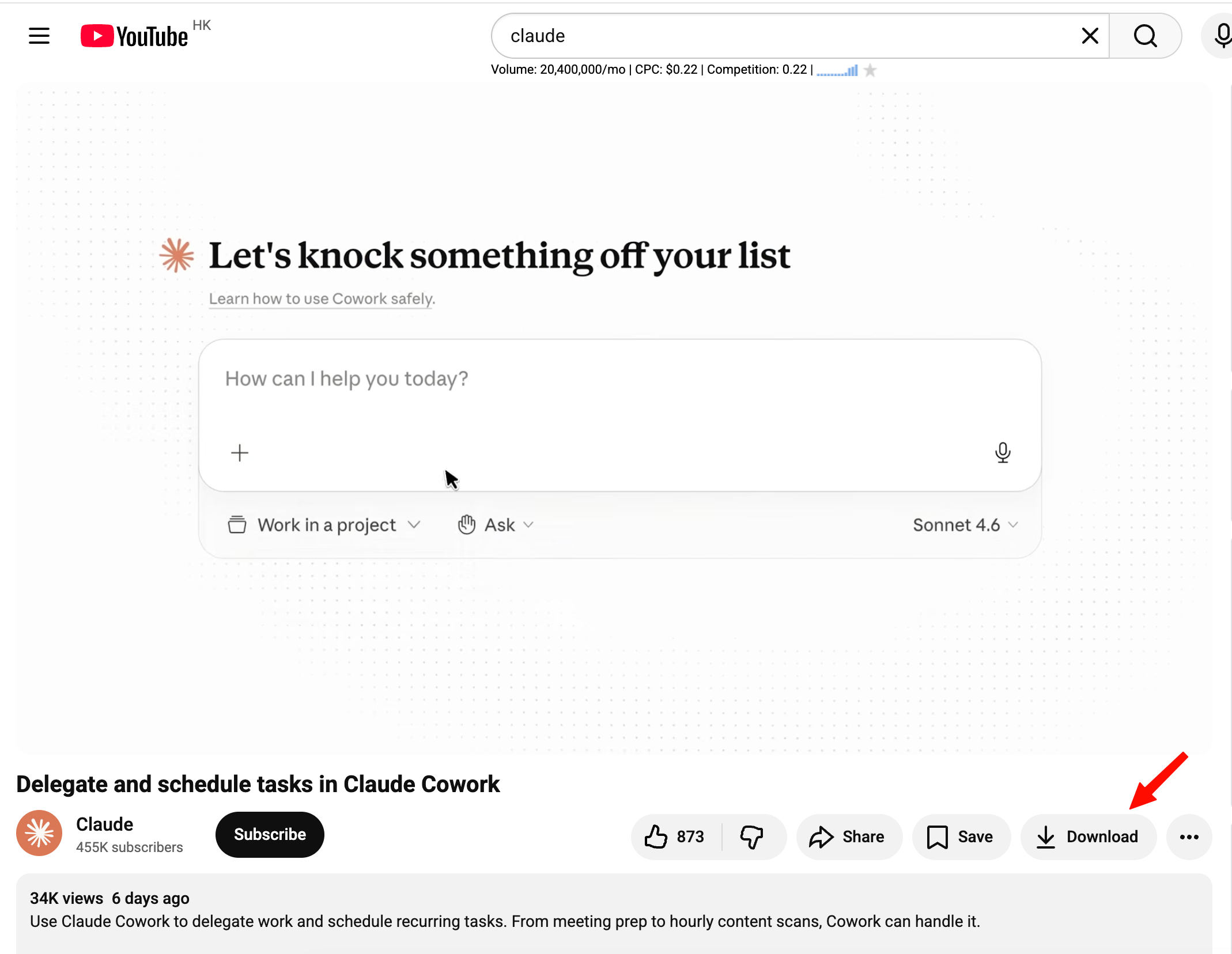
On desktop, check these places:
- Sign in to YouTube with the account that has download access, such as Premium where required.
- Open the video on YouTube.com.
- Click Download under the player if the button is available.
- Choose a quality setting if YouTube asks.
- Open Downloads from YouTube's left-side menu to watch later.
Feature | Official YouTube download |
|---|---|
Offline watching on desktop | Yes, when the Download button is available |
Export as MP4 | Usually no |
Edit in video software | No |
Share outside YouTube | No |
Stored like a normal desktop file | No, it is for playback inside YouTube |
Safer than random downloader sites | Yes |
This is a viewing feature, not a general file export feature. If you need an editable MP4, use your original file or an official creator download path.
Why You May Not See a Desktop Download Button
Desktop YouTube downloads are visible for many users, but they are not guaranteed for every account or every video. Common reasons you may not see the button include:
- You are not signed in to a Premium account.
- The feature is not available in your country or region.
- The specific video is not eligible for offline download.
- The button is hidden in the player menu or more-options area.
- You are trying to export an MP4 file, which official offline downloads are not designed to provide.
If you need a normal editable video file, the official path is usually your own source file or your creator account, not the desktop offline download feature.
Method 2: Download or Recover Your Own YouTube Videos
If the video is yours, use the original file whenever possible. It will usually be higher quality and easier to edit than anything downloaded after upload.
If you no longer have the original file, use YouTube Studio when your account provides the option to download your uploaded video as an MP4. YouTube's creator help page describes this as a path for videos you uploaded, which is different from the public video Download button: it is meant for your own channel content.
Use this path when you need to:
- Edit your own video
- Reuse footage
- Archive your content
- Transcribe your own recording
- Avoid third-party downloader sites
For transcription, upload your file to [VOMO Video to Text](/tools/video-to-text). For MP4 files, use [MP4 to Text](/tools/mp4-to-text). If you need a web-ready transcript export from an MP4 file, [MP4 to HTML](/tools/mp4-to-html) is a better fit than downloading the same video again.
Method 3: Organize Desktop Video Files Before Transcribing
For desktop workflows, the problem is often not the download itself. It is file management after the download.
Use a simple folder structure:
Originalsfor source MP4/MOV filesTranscriptsfor exported textNotesfor summaries and action itemsClipsfor edited excerpts
Then process only the files you are allowed to use. If a video is long, transcribe it first and decide later whether you need the full video file.
Method 4: Use a Transcript Instead of Downloading the Video
If you only need the spoken content, a transcript is usually better than the video file.
With VOMO, you can:
- Paste a YouTube link into [VOMO YouTube Transcript](/tools/youtube-transcript) when captions or transcript data are available.
- Review the timestamped transcript.
- Generate an editable summary.
- Extract key takeaways and action items.
- Ask questions with Ask AI.
- Copy, export, or share the result.
This is best for research, lectures, webinars, interviews, podcasts, product demos, and long videos where you need the information more than the raw video.
If you only need the audio from a video you are allowed to use, r use Audio to Textor [MP3 to Text for transcription.
Should You Use Free YouTube Downloader Sites?
Be careful. Many free downloader sites are unstable, full of ads, or risky from a privacy and security perspective. They may also encourage uses that conflict with YouTube's rules or copyright restrictions.
Before using any downloader, ask:
- Do I own this video?
- Do I have permission to download it?
- Is there an official download option?
- Do I actually need the video file, or just the transcript?
If the answer is "I need the content," use VOMO instead of downloading.
YouTube Download vs VOMO Transcript
Feature | YouTube download | VOMO transcript workflow |
|---|---|---|
Best for | Offline watching | Understanding and using the content |
Storage use | High | Low |
Searchable text | No | Yes |
Timestamps | No | Yes |
Summary | No | Yes |
Key takeaways | No | Yes |
Action items | No | Yes |
Ask AI | No | Yes |
Export/share notes | No | Yes |
Best Workflow by Use Case
Use case | Recommended workflow |
|---|---|
Desktop offline viewing | YouTube official Download button if available |
iPhone offline viewing | Use the separate [iPhone guide](/blog/how-to-download-youtube-videos-on-iphone) |
Recover your own upload | YouTube Studio or original source file |
Archive creator files | Original MP4/MOV + organized desktop/cloud folders |
Summarize a lecture | YouTube Transcript + summary |
Pull quotes from an interview | Timestamped transcript, then verify quotes |
Create meeting/webinar notes | [Video to Text](/tools/video-to-text) + action items |
Transcribe MP4 | MP4 to Text |
Export MP4 transcript as HTML | MP4 to HTML |
Transcribe permitted audio only | Audio to Text or MP3 to Text |
Save device storage | Use transcript instead of video download |
FAQ
Can I download any YouTube video?
No. Availability depends on YouTube features, account status, region, video settings, and permission. Only download videos you are allowed to use.
Why do official YouTube downloads not show as MP4 files?
Official downloads are usually meant for offline viewing inside YouTube. They are not general file exports.
How do I download my own YouTube video?
Use your original source file when possible. If you no longer have it, check your creator account for an official YouTube Studio download option. Avoid third-party tools when an official path exists.
Is a transcript better than downloading a YouTube video?
If you need to watch, download may help. If you need to summarize, search, quote, study, or repurpose the content, a transcript is usually better.
Can VOMO summarize YouTube videos?
Yes, when usable captions or transcript data are available. Not every YouTube video is supported.
What if the YouTube transcript is not available?
If you have permission to use the video file, upload it to VOMO Video to Text or MP4 to Text.
Final Recommendation
Use YouTube's official Download button for offline viewing.
Use original files or official creator workflows when you need an editable video.
Use VOMO when you want the content inside the video:
YouTube link -> VOMO YouTube Transcript -> timestamped transcript -> summary/key takeaways/action items -> Ask AI -> export/share.
VOMO FOR MEETINGS
Transform Your Meetings with VOMO
Experience seamless meeting recording, highly accurate transcription, and intelligent summarization. Let VOMO be your dedicated note-taker while you focus on what matters most.