


Não é permitido gravar Google Meet porque a gravação é uma funcionalidade premium limitada a determinados planos do Google Workspace. Factores como o tipo de conta, as definições do administrador, as permissões do anfitrião, as restrições do dispositivo, a disponibilidade de armazenamento e o estado da sala de descanso podem impedir a gravação. Por exemplo, as contas pessoais do Gmail ou os planos do Workspace de nível inferior, como o Business Starter, não podem gravar reuniões e, mesmo que tenha uma conta paga, as definições do administrador ou as regras de gestão do anfitrião podem restringir o acesso.
Se não conseguir gravar o seu Google Meet, VOMO Tomador de notas da reunião da IA pode captar e transcrever automaticamente as suas reuniões e, com um simples toque no seu dispositivo móvel, pode anotação completa de reuniões com IA num só clique.

Razões comuns para a indisponibilidade da gravação
Contas pessoais
A gravação só está disponível para os utilizadores pagos Contas do Google Workspace utilizadas no trabalho ou na escola. As contas gratuitas do Gmail não têm a funcionalidade de gravação.
Restrições administrativas
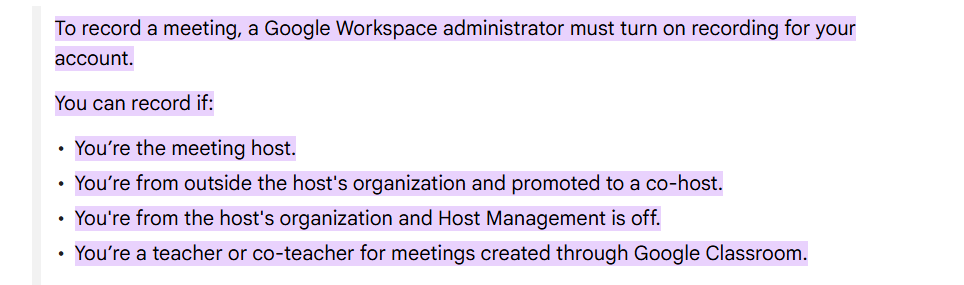
Os administradores do Google Workspace têm de ativar a gravação no Consola de administração. Se a sua conta ou organização tiver desativado esta funcionalidade, não verá a opção de gravação durante as reuniões.
Limitações do plano de espaço de trabalho
Alguns planos do Google Workspace, como Business Standard, Enterprise ou Education Plus, incluir gravação. Os planos de nível inferior, como o Business Starter, não suportam esta funcionalidade.
Permissões de anfitrião
Apenas o anfitrião ou co-anfitrião da reunião (se permitido) pode iniciar uma gravação. Se a gestão do anfitrião restringir a gravação, os outros participantes - mesmo em contas elegíveis - não podem gravar a reunião.
Restrições do dispositivo
A gravação só é suportada em computadores que utilizam um navegador Web, e não em telemóveis ou tablets.
Origem da reunião
As reuniões iniciadas a partir do hardware da sala de conferências ou de determinados plug-ins de terceiros podem não suportar a gravação.
Salas de descanso
A gravação não está disponível enquanto estiver numa sala de descanso, mesmo que a sessão principal esteja a ser gravada.
Armazenamento insuficiente
O organizador da reunião tem de ter armazenamento suficiente no Google Drive para as gravações. Se o armazenamento do organizador estiver cheio, a gravação falhará.
Como corrigir problemas de gravação no Google Meet
Contactar o seu administrador
Peça ao administrador do Workspace para ativar a gravação na sua conta e certifique-se de que a definição está ativa na consola de administração.
Verificar o seu tipo de conta
Certifique-se de que está a utilizar um conta do trabalho ou da escola com o plano correto do Google Workspace que suporta a gravação.
Utilizar um computador
Participe na reunião a partir de um navegador para computador portátil ou de secretária para aceder às funcionalidades de gravação, uma vez que os dispositivos móveis não são suportados.
Verificar permissões de anfitrião
Certifique-se de que as definições de gestão do anfitrião lhe permitem gravar. Se a reunião for organizada por outra pessoa, peça ao anfitrião para conceder acesso à gravação.
Libertar o armazenamento
Verifique o armazenamento do Google Drive para se certificar de que existe espaço suficiente para as gravações das reuniões e desocupe espaço, se necessário.
Conclusão
Gravação no Google Meet pode ser restringida por vários motivos, incluindo o tipo de conta, as definições do administrador, as limitações do plano, as restrições do dispositivo e as restrições de armazenamento. Compreender estes factores ajuda-o a identificar a razão pela qual a opção de gravação não está disponível e a tomar medidas para a corrigir. Ao garantir o plano correto do Workspace, as permissões e a configuração do dispositivo, pode ativar gravação para as suas reuniões e registar discussões importantes de forma eficiente.
