Creating an editable Word transcript from an AVI file is simple with modern AI transcription tools. You just upload the AVI video, let the system extract and transcribe the spoken content, and then export the result as a Word document. This method is fast, accurate, and ideal for turning video recordings into searchable, editable text.
工具如 VOMO simplify the process by automatically converting video speech into clean, editable Word documents in just a few clicks.

What Does It Mean to Create a Word Transcript from an AVI File?
Creating a Word transcript from an AVI file means converting the spoken audio inside the video into written text that can be edited in Microsoft Word. AVI is a common video format used for recordings, tutorials, and archived media, making it a frequent candidate for transcription.
This process relies on AI-powered 音訊轉文字 technology to recognize speech, apply punctuation, and organize content into readable paragraphs. The final result is a fully editable document that mirrors the original audio.
Why Convert AVI Videos into Word Documents?
Turning AVI videos into Word transcripts offers several clear advantages:
- Makes video content searchable and editable
- 相較於人工轉錄,可節省時間
- Improves accessibility for reading and sharing
- Allows easy reuse for reports, articles, or training
- Simplifies documentation and archiving
Once converted, your content becomes easier to manage and repurpose across platforms.
步驟 1:將您的 AVI 檔案上傳至轉錄工具
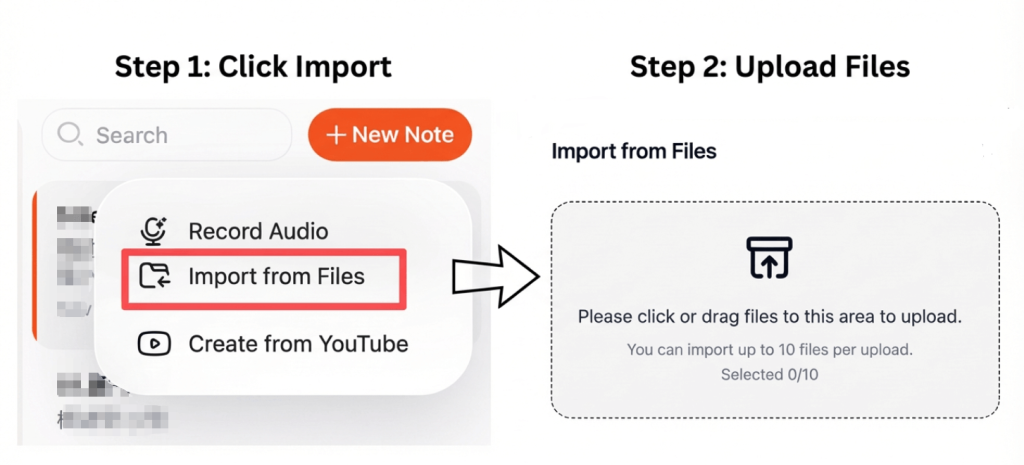
Start by choosing a transcription tool that supports AVI file uploads. Most modern platforms allow you to upload directly from your device or cloud storage.
For best results:
- Use videos with clear audio
- 將背景噪音降至最低
- Ensure speakers are easy to understand
Clear audio significantly improves transcription accuracy.
Step 2: Convert the AVI Video into Text Automatically
After uploading, the system processes the audio track and converts speech into text using AI-based 視訊轉文字 技術。
Advanced transcription tools can:
- 偵測多個喇叭
- 自動加入標點符號
- Structure text into readable sections
This step usually takes only a few minutes, even for longer recordings.
Step 3: Export the Transcript as an Editable Word Document
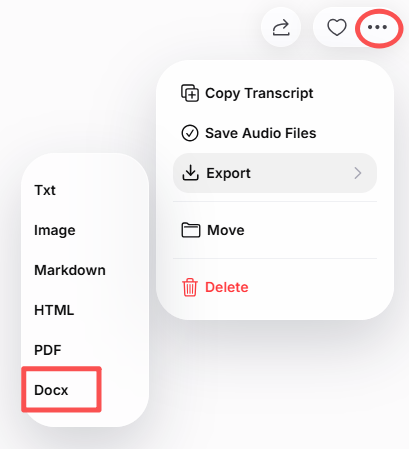
Once the transcription is complete, review the text and make any necessary edits. You can then export the file as a Word (.docx) document.
With the Word version, you can:
- Edit and format content easily
- Add headings or notes
- Share with teammates
- Store it for future reference
Some tools also allow exporting to PDF or TXT formats.
Best Tools to Convert AVI to Word
Here are some reliable tools for converting AVI files into Word documents:
- VOMO – Fast transcription with clean Word export
- Otter AI – 適合會議與講座
- 諾塔 – Supports multiple languages
- 說明 – Useful for creators and editors
- 開放原始碼工具 – Good for technical users
All of these tools are designed to deliver accurate and editable transcripts.
Tips for Getting the Best Transcription Results
To improve transcript quality:
- 在安靜的環境中錄製
- Avoid overlapping speakers
- Select the correct language setting
- Review and proofread before exporting
- Use high-quality audio whenever possible
Even small improvements in audio clarity can significantly increase accuracy.
總結
Creating an editable Word transcript from an AVI file is a fast and efficient way to turn video content into usable text. By uploading your video, letting AI handle the transcription, and exporting the result as a Word document, you save time and gain a flexible, searchable file.
Whether you’re working with interviews, lectures, or archived videos, this method makes your content easier to edit, share, and reuse.