Converting M4A audio into a Word transcript is quick and easy with AI transcription tools. You upload the M4A file, let the system automatically convert the spoken content into text, and export the result as an editable Word document. This method saves time, improves accuracy, and produces a professional transcript suitable for meetings, lectures, interviews, or personal notes.
工具如 VOMO simplify the process by automatically converting audio speech into clean, editable Word documents in just a few clicks.

What Does It Mean to Convert M4A Audio into a Word Transcript?
Converting M4A audio into a Word transcript means transforming the spoken words inside the audio file into editable text that can be formatted in Microsoft Word. M4A files are a common format for high-quality audio recordings, making them ideal for transcription.
This process relies on AI-powered 音訊轉文字 technology to detect speech, insert punctuation, and structure content into readable paragraphs that are ready for editing and sharing.
Why Convert M4A Audio into Word Documents?
Turning M4A recordings into Word transcripts offers multiple benefits:
- Saves hours of manual typing
- Creates searchable and editable text from audio
- Improves accessibility for reading and sharing
- Enables reuse of content for reports, blogs, or training
- Simplifies documentation and archiving
Word transcripts make your audio content flexible and easy to work with in professional or academic contexts.
Step 1: Upload Your M4A File to a Transcription Tool
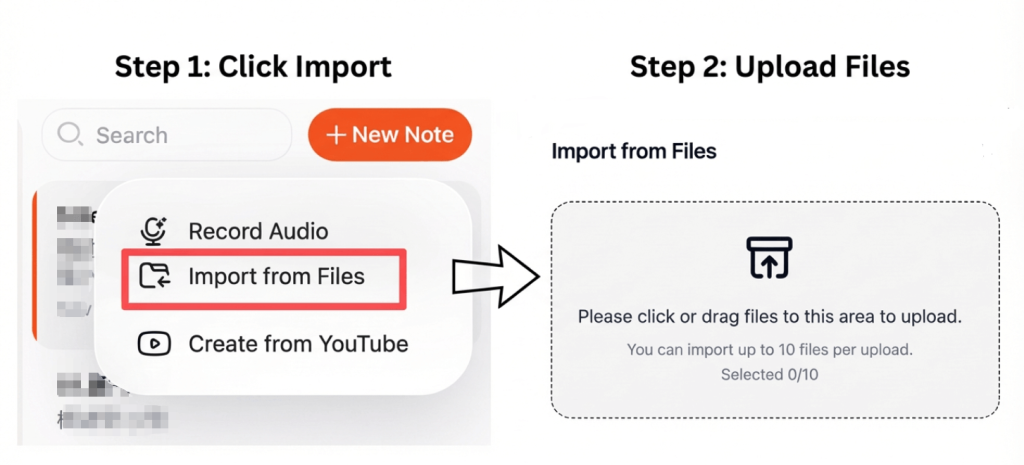
Choose a transcription platform that supports M4A uploads. Most modern tools allow you to upload files directly from your device or cloud storage.
達到最佳效果:
- Use high-quality recordings
- Reduce background noise
- Ensure speakers are clear and easy to understand
Clear and clean audio significantly improves transcription accuracy.
Step 2: Convert the M4A Audio into Text Automatically
Once uploaded, the transcription tool analyzes the audio and converts speech into written text. Advanced AI can handle different accents, punctuate sentences, and organize the content into readable sections.
Some platforms also support 視訊轉文字, meaning you can use the same workflow to transcribe audio extracted from video files with consistent accuracy.
Step 3: Export the Transcript as a Word Document
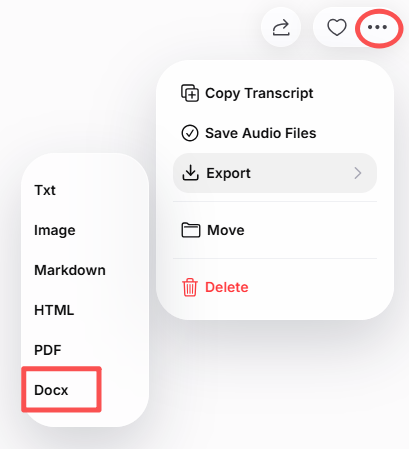
After transcription, review the text for any errors or formatting adjustments. Then export it as a Word (.docx) document.
With the Word file, you can:
- Edit and format content easily
- Add headings or notes
- Share with colleagues or students
- Store for future reference
Many tools also allow exporting in PDF or TXT formats for extra flexibility.
Best Tools to Convert M4A to Word
Here are some reliable tools for converting M4A audio into Word documents:
- VOMO – Accurate, fast transcription with clean Word export
- Otter AI – Great for meetings, lectures, and interviews
- 諾塔 – Supports multiple languages and accents
- 說明 – Ideal for content creators and podcasters
- Open-source transcription tools – 適用於開發人員與研究人員
These tools leverage advanced 音訊轉文字 algorithms to produce highly accurate and editable transcripts.
Tips for Getting the Most Accurate Transcripts
To ensure the highest transcription quality:
- 在安靜的環境中錄製
- 說話清晰,步伐穩定
- Avoid overlapping speech
- Select the correct language and accent
- Proofread the transcript before final export
Even minor improvements in audio clarity can significantly increase accuracy.
總結
Converting M4A audio into a Word transcript using AI is fast, efficient, and practical. By uploading your audio, letting AI transcribe it, and exporting the result as a Word document, you can create a clean, editable, and searchable transcript in minutes.
Whether for lectures, meetings, interviews, or podcasts, this method makes your audio content easier to edit, share, and reuse.