To save ملاحظات الاجتماع in Microsoft Teams, you can utilize the built-in “Notes” tab powered by Loop components, which automatically saves to your OneDrive, or integrate a dedicated OneNote tab for long-term storage. However, relying solely on native tools often leads to fragmented information buried in chat history or scattered across different file locations. A more reliable strategy involves using centralized documentation or automated tools to take meeting notes to ensure critical insights are captured and easily retrievable after the call ends.
فومو تلقائيًا turns recordings into structured meeting notes with key points and decisions, ensuring you capture every detail with 99% accuracy without typing a single word inside Teams .
The “Missing” Notes: Where Does Teams Store Data Now?
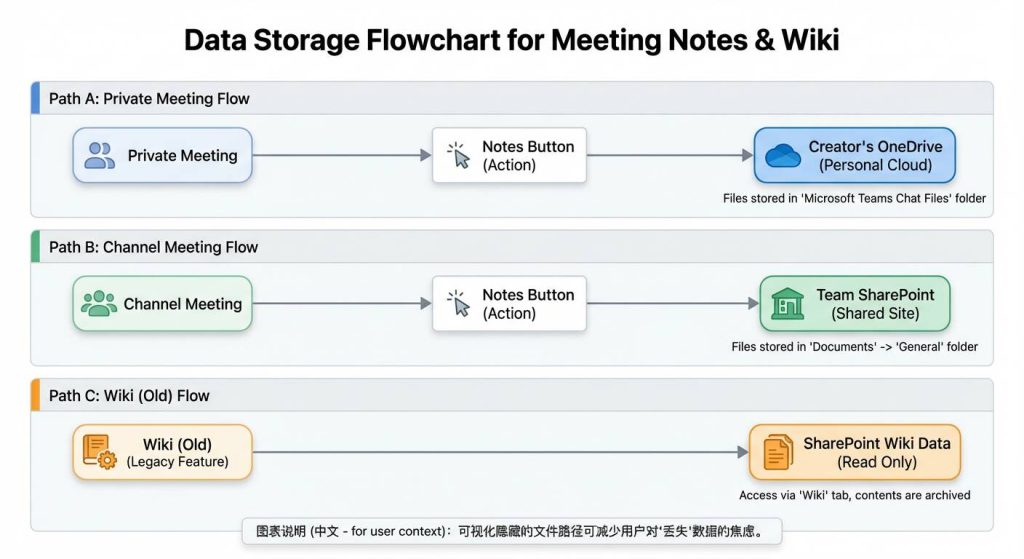
If you are confused about where your notes disappear to after a meeting, you are not alone. Microsoft’s transition from the “Wiki” tab to Loop Components has shifted the storage architecture entirely.
- Loop Components: Notes taken via the “Notes” button are now
.loopfiles. These are technically stored in the ون درايف of the person who created the note (usually under “Microsoft Teams Chat Files” or “Meetings”). - Channel Meetings: If the meeting was held inside a specific Channel, the notes are stored in that Team’s SharePoint site.
- The Wiki is Dead: The classic Wiki tab has been deprecated. If you are looking for old notes, they may have been migrated to OneNote or remain in a read-only state in SharePoint “Teams Wiki Data” folders.
Method 1: Using Loop Components (The Default “Collaborative” Way)
The default method in 2026 is the “Notes” tab. This utilizes Loop components, which allow everyone to type simultaneously.
- During the Meeting: انقر فوق “Notes” button in the top toolbar. A pane will open on the right side.
- After the Meeting: You can find these notes in two places:
- The meeting entry in your Teams Calendar (click the event > “Details”).
- إن Chat history associated with that meeting.
Pros & Cons: While great for real-time collaboration, Loop components are difficult to export. Understanding what should and should not be included in meeting minutes is still up to the participants to manage manually.
Method 2: The “Old Reliable” – Using OneNote in Teams
For recurring meetings, OneNote is superior because it keeps history in one notebook. Knowing كيفية تدوين محاضر الاجتماعات effectively within OneNote can create a permanent “shelf” for your data. However, it still requires manual effort to type out decisions while trying to listen.
- الخطوة 1: Go to your Teams Channel or Meeting Chat.
- الخطوة 2: انقر فوق “+” icon to add a tab.
- الخطوة 3: اختر ون نوت and choose an existing notebook or create a new one.
This creates a permanent “shelf” for your notes. However, it still requires manual effort. You must type out the minutes, decisions, and action items yourself while trying to listen to the conversation.
Method 3: The “Hands-Free” Way – Auto-Save with VOMO AI
Manual note-taking is distracting. If you are typing, you aren’t fully listening. A more efficient method for 2026 is to automate the capture process using AI tools like فومو.
From Audio to Actionable Meeting Notes
Instead of scrambling to write down what was said, VOMO allows you to record the meeting and automatically summarizes meeting notes effectively with key points, decisions, and action items.
99% Accuracy Without Typing
VOMO delivers highly accurate transcripts with speaker identification, so you don’t need to spend time editing or fixing errors.
- السجل: Use VOMO to record the Teams audio.
- Process: The AI processes long recordings in minutes.
- Save: The notes are automatically saved to your VOMO dashboard, ensuring you know exactly who should take notes in a meeting—the AI.
Smart Context Detection
VOMO detects the meeting context and applies the right note template automatically. Whether it’s a standup or a strategy session, the notes are formatted for you—no setup required.
Method 4: How to Export Teams Notes to PDF or Word
One of the biggest frustrations with native Teams notes (Loop) is the lack of export options.
- The Manual Copy: Highlight the text in the Loop component, copy (Ctrl+C), and paste it into Word.
- Print to PDF: If you open the Loop file in a web browser (via Office.com), you can use the browser’s “Print” function to save as PDF.
Mid-Article Mention: Unlike Teams’ restrictive format, VOMO allows you to export your AI-generated notes and summaries to Markdown, Text, or Word with a single click, ensuring your data is portable.
Comparison: Which Method Should You Choose?
| الميزة | Loop Components | ون نوت | VOMO AI |
| الأفضل لـ | Real-time brainstorming | Recurring team records | Full documentation & accuracy |
| الأتمتة | None (Manual typing) | None (Manual typing) | 100% Automated |
| التخزين | Scattered (OneDrive) | Organized Notebooks | Centralized Dashboard |
| إمكانية البحث | Hard (buried in chats) | جيد | Excellent (AI Q&A) |
VOMO is the AI meeting note taker that guarantees 99% transcription accuracy and super fast processing, so you never have to worry about saving notes manually again .