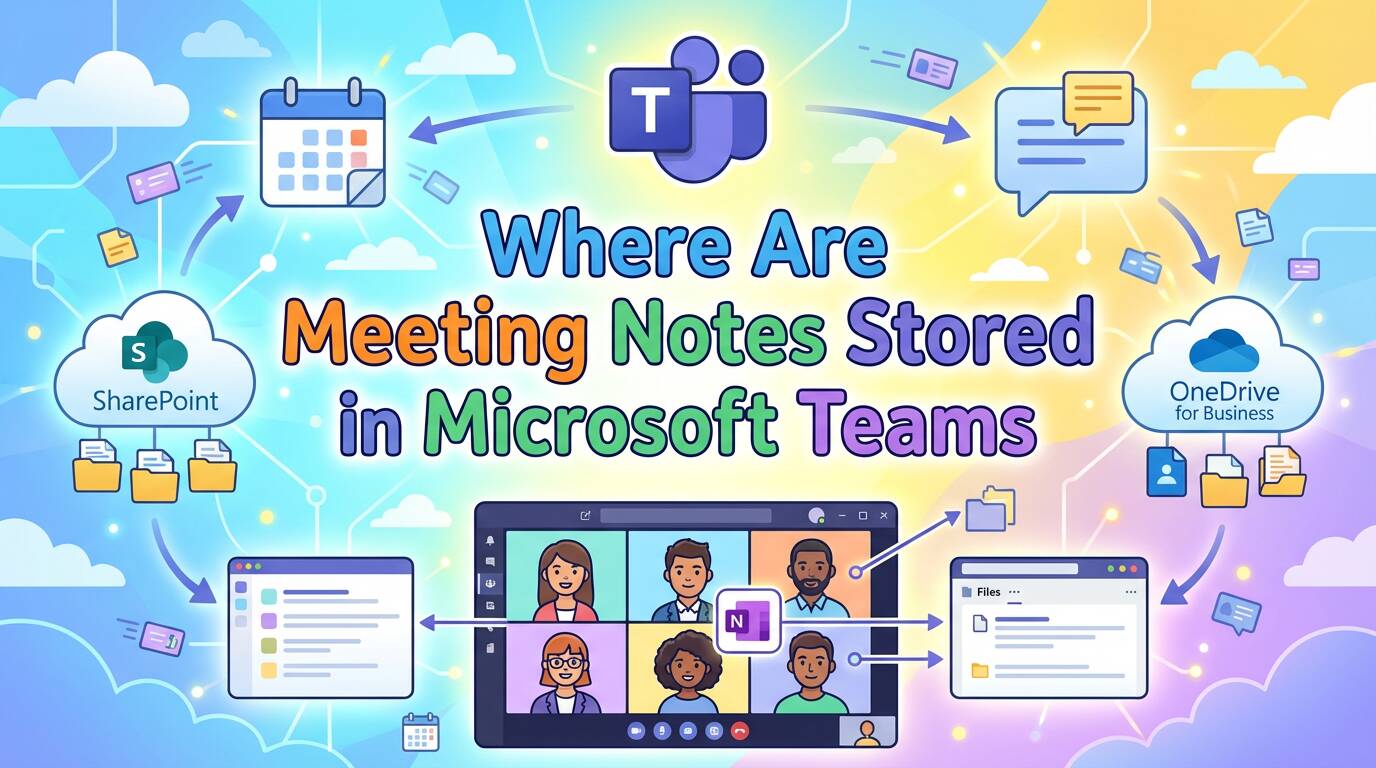
مايكروسوفت تيمز ملاحظات الاجتماع are generally stored in the meeting organizer’s OneDrive for Business (for private meetings) or the SharePoint site associated with a team (for channel meetings).
معرفة what are meeting notes and where they live is essential for team organization. Modern collaborative notes (Loop components) can be accessed directly via the الخلاصة tab or meeting invite, while transcripts often reside in a separate “Recordings” folder. Navigating this fragmented system of OneDrive, SharePoint, and Exchange can be frustrating, making it difficult to retrieve critical insights once the chat history fades.
فومو solves this storage fragmentation by automatically turning recordings into structured meeting notes with key points and decisions, ensuring your data is always organized, centralized, and accessible in minutes .

How to Find Notes via the “Recap” Tab (The Modern Way)
In 2026, Microsoft consolidates meeting assets under the Recap tab. This is the first place you should look if you want to learn how to take meeting notes for any type of meeting effectively within the Teams ecosystem.
- Go to your Teams Calendar.
- Double-click the past meeting event to open the details.
- انقر فوق “Recap” tab (next to “Chat” and “Details”).
Here, you will find the Loop component containing the collaborative notes, along with the recording and transcript.
- Note on Copilot: If you used Copilot to generate notes, they are saved as a Loop component here in the Recap. For those looking for a more automated approach, you might explore how to use AI to take meeting notes step-by-step guide to streamline this process further.
Deep Dive: Locating Private Meeting Files (OneDrive)
For standard meetings (non-channel), the actual file (usually a .loop file) resides in the Meeting Organizer’s personal storage. If you are the one responsible for this, it helps to understand who should take notes in a meeting to ensure accountability.
The Exact Path: OneDrive for Business > My Files > Microsoft Teams Chat Files
⚠️ The “Orphaned File” Risk: Because these files live in a personal OneDrive, if the meeting organizer leaves the company and their account is deleted, the notes may be permanently lost. This is a major risk for long-term project documentation.
Deep Dive: Locating Channel Meeting Notes (SharePoint)
Channel meetings are safer because the data belongs to the Team, not an individual. This is particularly important when recording formal كيفية تدوين محاضر الاجتماعات for official records.
The Exact Path:
- انتقل إلى Team Channel في الفرق.
- انقر فوق “Files” علامة التبويب في الأعلى.
- انقر فوق “Open in SharePoint”.
- Look in the
المستنداتlibrary under the folder named after your channel.
Transcripts & Recordings: These are often stored in a subfolder within the channel’s SharePoint site, typically named التسجيلات أو View Only.
The Problem with Teams Storage: Fragmentation & Access
While the system works, it creates “data silos.”
- Fragmentation: Your audio recording is in a “Recordings” folder, but your notes are in “Teams Chat Files.” You have to open two different windows to review the meeting.
- Permissions Hell: If you weren’t on the original invite, you often have to “Request Access” to see the Loop component, causing delays. It is vital to know what should and should not be included in meeting minutes to avoid sharing sensitive data with the wrong people.
The Centralized Solution: Store Everything in VOMO
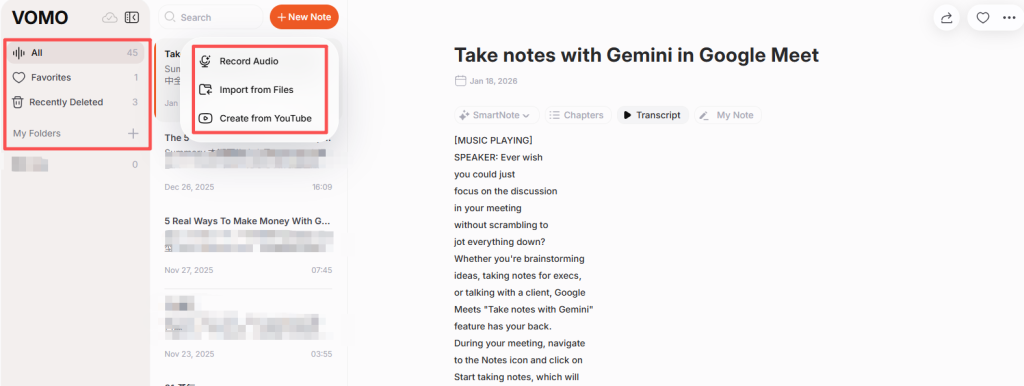
Why play “hide and seek” with your data? VOMO acts as a unified central repository for all your meeting intelligence, independent of Microsoft’s complex file paths. For users specifically on other platforms, VOMO also offers guidance on how to take AI notes on Google Meet step-by-step.
One Unified Dashboard
VOMO stores your audio recording, transcript, and AI-generated notes together in one secure link. You never have to hunt through OneDrive folders again .
Better Than Loop: 99% Accuracy Without Typing
Microsoft Loop requires you to type manually. VOMO uses advanced تحويل الكلام إلى نص to capture 99% accurate transcripts and automatically identifies speakers, ensuring you have a verbatim record of who said what .
Search Inside the Meeting (AI Q&A)
Instead of opening ten different .loop files to find a specific decision, use VOMO’s AI Q&A. You can ask your dashboard, “What was the budget deadline mentioned in last week’s marketing sync?” and VOMO will retrieve the answer instantly, showing you how to summarize meeting notes effectively.
Summary Table: Where is My Data? (Cheat Sheet)
| Meeting Type | Asset | Storage Location |
| Private / Standard | Notes (Loop) | Organizer’s OneDrive (/Microsoft Teams Chat Files) |
| Private / Standard | التسجيل | Organizer’s OneDrive (/Recordings) |
| Channel Meeting | Notes (Loop) | Team SharePoint (/Channel Name) |
| Channel Meeting | التسجيل | Team SharePoint (/Channel Name/Recordings) |
| Legacy Wiki | Notes (Old) | SharePoint (/Teams Wiki Data) |
FAQ: Recovering Old Wiki Notes
If you are looking for notes from before 2024/2025:
- Go to the Channel’s “Files” علامة التبويب.
- اختر “Open in SharePoint”.
- Locate the folder “Teams Wiki Data”.
- Your notes are stored there as
.mhtfiles (readable in a browser).