

To quickly batch transcribe audio files, you can use powerful AI tools, which let you process multiple files at once with just a few clicks. Desktop applications such as Buzz allow you to transcribe all files in a folder, while cloud-based services like Azure and Google Cloud Speech-to-Text require uploading files to their storage and using APIs to handle transcription. For a faster, more convenient option, online tools like VOMO let you drag and drop multiple files and start batch transcription instantly—no complicated setup needed.
By using top AI transcription services, you can achieve high accuracy even with long recordings, multiple speakers, or diverse file formats. This guide will show you the fastest methods, tools, and best practices for efficient batch transcription.
One of the best AI transcription tools with batch transcription capabilities is VOMO. With just a few simple clicks, you can easily complete all your batch transcriptions.

What Does Batch Audio Transcription Mean?
Batch transcription means converting several audio files—like MP3s, WAVs, or voice memos—to text all at once. Instead of uploading and transcribing files individually, you upload a batch, and the tool processes them together. This is ideal for podcasters transcribing full seasons, researchers handling interviews, or anyone working with multiple recordings.
The Real Challenge: Batch Transcription Is Not Just About Speed
After handling large volumes of audio files (interviews, meetings, and recordings), one thing becomes clear:
Batch transcription is not just about processing files faster—it’s about managing the entire workflow.
In practice, the real challenges include:
- Organizing dozens or hundreds of files
- Keeping transcripts linked to the correct source
- Maintaining consistency across outputs
This is why batch transcription should be treated as a system, not just a feature.
Understanding the differences between transcription and transcript is the first step in managing this workflow effectively.
Why Most Tools Fail at True Batch Processing
Many tools claim to support batch transcription, but in real use, they often fall short.
Common limitations include:
- Only allowing multiple uploads but processing files sequentially
- No centralized dashboard for tracking jobs
- Lack of automation after transcription
This creates a situation where users still spend significant time managing files manually.
The Workflow Bottleneck: From Files to Organized Transcripts
From real usage, the biggest inefficiency appears after transcription is completed.
Typical problems include:
- Files and transcripts are not clearly matched
- Naming conventions are inconsistent
- Outputs are scattered across folders or platforms
An effective batch workflow should include automatic file naming and structured output organization to ensure you can easily turn video into documents or structured records:
- Automatic file naming
- Structured output organization
- Easy export and retrieval
Handling Large Files: Why Splitting Still Matters
Even with modern AI tools, large files can still cause issues.
In practice:
- Very long recordings may slow processing
- Upload limits can interrupt workflows
- Errors are harder to debug in long files
Breaking files into smaller segments can:
- Improve accuracy
- Speed up processing
- Make review easier
Step-by-Step Guide: How to Batch Transcribe Audio Files
I will use vomo.ai to demonstrate how to batch transcribe audio files.
Step1: Prepare Your Files
Ensure your audio is clear; poor sound quality reduces accuracy. You may need to transcribe m4a files to text or prepare WAV/MP3 formats.
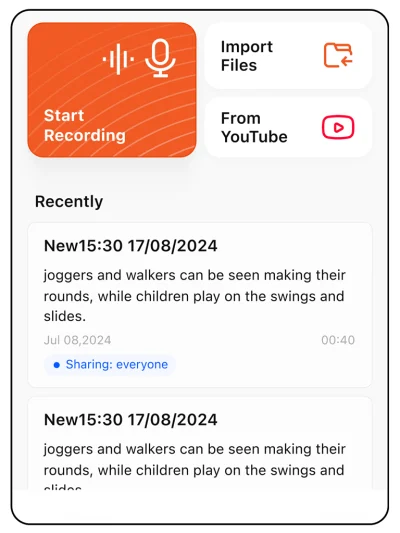
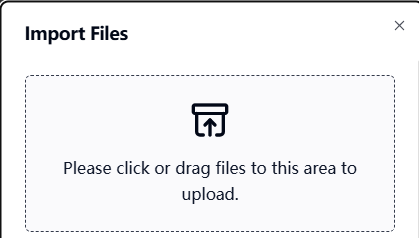
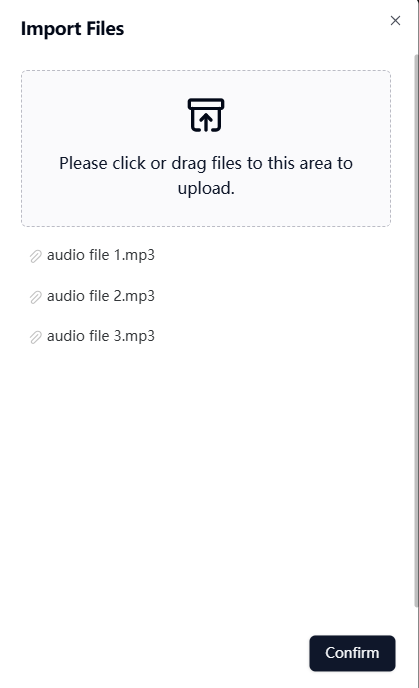
Step2: Upload Multiple Files
Drag-and-drop several files or select entire folders.
Step3: Process and Download
Let the AI transcribe your batch. Once done, download the transcripts and organize them. Common choices for output format include TXT, DOCX, and SRT for captions. If you are working with video, you can transcribe MP4 to text just as easily.
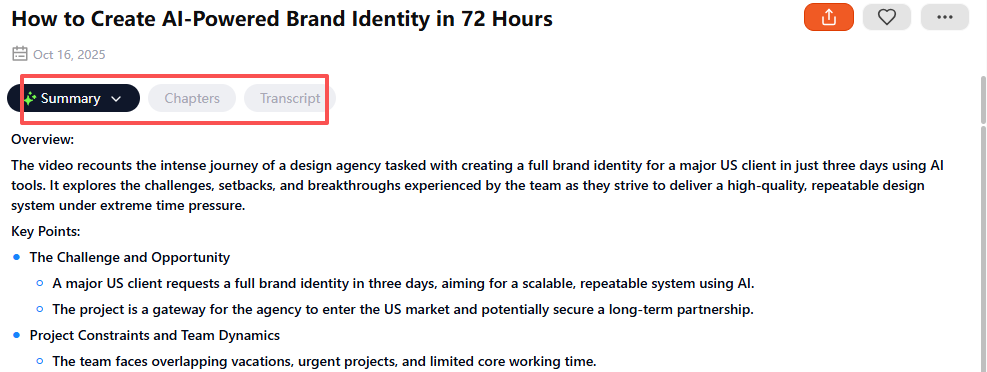
Step 4: Review and Edit Your Transcript
Check for speaker labels, technical jargon, or timecode transcription accuracy.
This method lets you turn hours of dictation or meetings into searchable text with minimal effort.
Features to Look for in a Batch Transcription Tool
Multi-file support for bulk uploads
High transcription accuracy powered by modern AI models
Support for different languages and accents
Automated summary or AI meeting notes generation.
Export options (Google Drive, Dropbox integration)
I always choose tools with good accuracy and convenient export features—it saves editing time later.
Common Audio Formats Supported
Tools I’ve used handle MP3, WAV, M4A, AAC, and MP4. If you are working specifically with Apple devices, knowing how to transcribe a video on iPhone can help you prepare your batch more effectively.
Batch Transcription for Specific Use Cases
YouTube Creators: You can check if Gemini can transcribe YouTube videos or download audio in bulk to transcribe entire playlists.
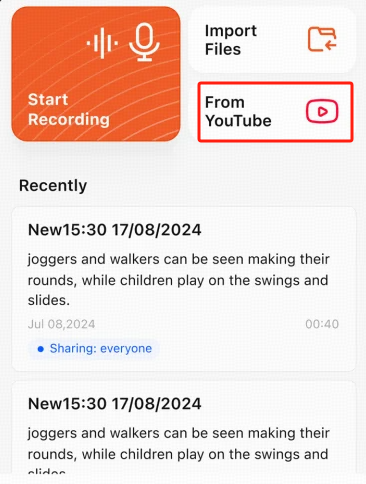
Meeting Organizers: Upload batches of recorded Zoom calls or voice memos to generate transcripts and actionable AI meeting notes.
Podcasters: Transcribe a podcast from Spotify or your own local recordings in one go.
Academics: Transcribe interviews, lectures, or field recordings efficiently.
These use cases show how batch conversion saves time and effort.
Cost at Scale: Why Batch Transcription Gets Expensive Fast
One of the biggest overlooked issues is cost.
Batch transcription often scales by:
- Per minute pricing
- Per file processing
- API usage
When working with large datasets:
- Small costs multiply quickly
- Inefficient workflows increase expenses
Choosing the right tool is not just about features—it’s about cost efficiency at scale.
File Management Strategy: The Missing Piece in Most Guides
Batch transcription becomes messy without a clear file system.
A simple but effective structure includes:
- Folder organization by date or project
- Consistent naming (e.g., meeting_01, interview_A)
- Matching transcript filenames automatically
This reduces confusion and saves time during review.
When You Should Use Batch Transcription (And When You Shouldn’t)
Batch transcription is ideal for:
- Large datasets (50+ files)
- Repetitive workflows
- Ongoing content production
However, it may not be necessary for one-off recordings or short clips where you might just need a quick tool to transcribe audio once.:
- One-off recordings
- Short clips
- High-precision manual work
Choosing batch processing only when needed improves efficiency.
Best Tools to Batch Convert Audio to Text
In my experience, tools that support batch uploads and use advanced AI models deliver the best balance of speed and accuracy. Here are some I’ve tested:
VOMO AI: Offers multi-file uploads and generates effortless podcast summaries with AI.
Otter.ai: Excellent for team collaboration with batch uploads and solid speech to text capabilities.
Descript: Perfect for creators, it lets you transcribe and edit batches easily.
Rev Pro: Supports batch uploads with human or AI transcription options, useful when accuracy is critical.
Each tool varies in pricing and supported formats, but all can handle bulk files effectively.
I highly recommend VOMO because it offers the best support for batch transcription.
Using Dedicated Applications for Batch Transcription
- Buzz: Free desktop app, select multiple files, choose transcription model and language, and process all at once.
- Speech Translate: Uses OpenAI’s Whisper to transcribe multiple audio/video files automatically, outputting text or SRT files.
Using Cloud-Based Services
- Microsoft Azure Speech: Upload audio to Azure Blob Storage, create a batch transcription job via portal, API, or Power Automate, then retrieve transcripts.
- Google Cloud Speech-to-Text: Upload audio to Cloud Storage, enable the API, and run a batch transcription job. Results can be stored in a bucket or returned inline.
These services are scalable and ideal for large datasets.
Troubleshooting Tips
- Audio quality matters. Use clear recordings without background noise for best results.
- Label files clearly to avoid confusion.
- If your audio has multiple speakers, choose tools with speaker identification.
- Edit transcripts afterward for perfect accuracy.
Final Thoughts: Which Tool Should You Use?
For fast, cost-effective batch transcription with integrated AI summaries, VOMO is my preferred choice. It handles everything from converting voice memos to mp3 to full-scale batch processing.
Try batch converting your files today with these tips—you’ll save time and get reliable audio to text results.
FAQs
Can I batch transcribe audio for free?
Some tools offer free trials or limited free minutes. Check VOMO and Otter.ai for options.
What’s the best format to upload for transcription?
MP3 and WAV are most universally supported and yield the best accuracy.
Does batch conversion support speaker labeling?
Yes, many advanced tools identify speakers automatically.
