

Turning a video into a document is easier than most people think. In my experience, you can either use AI transcription tools to convert speech into text or manually transcribe key sections, then save them as Word or PDF files. Beyond text, combining still frames from videos with transcripts can create visually rich documents. If you just want to include a video in a document, linking it directly also works.
Here’s a practical breakdown of how I personally handle video-to-document conversion workflows. The best way is still AI transcription—it can convert a video into text in just a few minutes.

What is Video-to-Text Document Conversion?
Video-to-text document conversion is the process of extracting the spoken words from a video file and turning them into readable text. This process transforms bulky multimedia files into easily scannable and searchable documents.
Using AI technology, this conversion goes beyond simple raw transcripts. Modern tools can identify who is speaking, add timestamps, and organize the text into formatted paragraphs, making the final output look like a professionally typed document.
Core Benefits of Converting Videos into Written Content
Boost SEO Rankings and Web Accessibility with Video Transcripts
Search engines like Google cannot “watch” videos, but they can crawl and index text. By converting your videos into documents, you provide search engines with keyword-rich content, dramatically improving your page’s SEO ranking.
Additionally, text documents and transcripts improve web accessibility. They allow deaf or hard-of-hearing users to consume your content, ensuring you meet compliance standards and reach a wider audience.
Seamlessly Repurpose Video Assets (Blogs, Social Media, SOPs)
A single one-hour video can be a goldmine of content. Converting that video into a document allows you to repurpose the core message instantly.
You can break the text document down into weekly blog posts, LinkedIn updates, email newsletters, or structured Standard Operating Procedures (SOPs) for your team. This maximizes the ROI of your original video recording.
3 Ways to Transcribe Video to Text
The fastest way I’ve found to convert a video into a document is to generate a transcript. Depending on the length and complexity of the video, I either use AI tools or do manual transcription.
Method 1: Use an AI transcription service
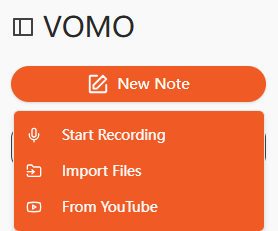
I usually upload my videos to VOMO.ai, which allows me to turn MP4 files into editable text within minutes. Other tools I’ve tried include HappyScribe and Go Transcribe. These platforms are especially handy for longer webinars or lectures because they save hours compared to typing manually.
Method 2: Manual transcription when needed
For sensitive content or videos with multiple speakers, I play the video in short segments and type the audio directly into Microsoft Word or Google Docs. While this is slower, it gives me complete control and ensures accuracy for technical terms.
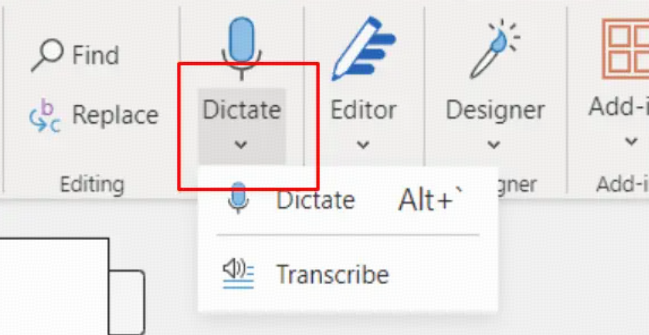
Method 3: Use built-in tools in Word
I’ve also experimented with Microsoft Word’s “Transcribe” feature under the Home tab. By uploading a video file, Word can convert the audio into text directly within the document. For shorter files, this is surprisingly fast and requires minimal setup.
| Feature | Manual Typing | AI Transcription Software |
| Speed | Takes 3-4 hours per hour of video. | Turns hours of audio into text in minutes. |
| Accuracy | Prone to human fatigue and typos. | Up to 99% accuracy with advanced models. |
| Cost | Expensive if hiring a human transcriptionist. | Highly cost-effective or even free. |
Step-by-Step Guide: How to Convert Video to Document Fast
Step 1: Upload Local Video Files or Import YouTube URLs Directly
Getting started is simple. You can easily generate Smart Notes by uploading local video files or using the YouTube video import feature.
This eliminates the need to download heavy videos from the internet first. Just paste the link, and the AI begins processing the content instantly.
Step 2: Auto-Transcribe with 99% Accuracy & Speaker Identification
Once uploaded, VOMO records and captures every detail, automatically delivering polished notes in seconds. The AI provides up to 99% accuracy with speaker identification, requiring no manual editing.
It supports transcription in over 50 languages, making it perfect for international teams or foreign-language videos.
Step 3: Apply Scene Templates for Instant Document Formatting
After transcription, VOMO’s Smart Note feature automatically extracts key points and summaries to help you quickly organize information.
This auto-generates structured notes for any scenario, transforming raw dialogue into a readable, professional format instantly.
Step 4: Export to Word, PDF, or Share via Cloud Link
When your document is ready, you can easily share recordings, Smart Notes, and insights with your team in multiple formats.
VOMO also provides unlimited cloud storage, ensuring your notes will never be lost and can be accessed safely anytime and anywhere.
Common Problems When Turning Video into Documents (Based on User Research)
Through user research, one consistent pattern emerges: converting a video into a document is not just about transcription—it’s about usability.
Many users discover that a raw transcript alone is often not enough. Instead of getting a clean, structured document, they end up with unformatted text that requires significant manual editing.
1. Transcripts Are Not Ready-to-Use Documents
One of the most common frustrations is that transcripts are difficult to read and even harder to reuse.
Users often report that:
- There is no clear structure
- Key points are buried in long paragraphs
- The content lacks logical organization
As a result, a transcript becomes just an intermediate file—not a finished document.
2. Poor Formatting Makes Content Hard to Read
Another major issue is formatting.
Raw transcripts often include:
- Excessive timestamps
- Broken sentences
- No headings or sections
This creates what many describe as a “wall of text,” making it difficult to scan or extract useful information.
👉 What users actually want:
- Clear headings
- Bullet points
- Well-structured paragraphs
3. Long Videos Are Difficult to Process
Handling long-form content (30–60 minutes or more) is still a challenge.
Users frequently encounter:
- Slow processing speeds
- File size limitations
- The need to split videos manually
This adds friction to what should be a simple workflow.
4. The Workflow Is Too Complicated
Another key pain point is the number of steps involved.
In many cases, users have to:
- Download the video
- Extract audio
- Upload to another tool
- Clean up the transcript manually
This multi-step process reduces efficiency and discourages regular use.
👉 Ideal expectation:
One-step workflow: video → structured document
5. Accuracy Issues and Context Loss
Even with AI transcription, users still face:
- Misheard names or technical terms
- Lack of context understanding
- No distinction between important and unimportant content
This makes the output less reliable for professional use.
6. No Summaries or Actionable Insights
Most tools focus only on transcription, but users need more than just text.
They are looking for:
- Key takeaways
- Summaries
- Action items
Without these, the document lacks real value and usability.
The Smarter Approach: From Transcript to Structured Document
This is where modern AI tools like VOMO stand out.
Instead of stopping at transcription, they:
- Automatically structure content into readable formats
- Extract key points and summaries
- Turn raw dialogue into actionable documents
This eliminates the need for manual cleanup and significantly improves efficiency.
Tips from My Experience
Here’s what I’ve learned after converting dozens of videos into documents:
- Audio quality matters: Clear audio ensures AI transcription accuracy. I recommend using an external mic when recording.
- Split long videos: For videos over an hour, I segment the file into 10–15 minute chunks. This improves processing speed and accuracy.
- Double-check names and terms: AI sometimes mishears technical terms or names, so I review these manually.
- Combine approaches: For maximum clarity, I sometimes embed key images, include a transcript, and add a video link—all in one document.
With these strategies, you can turn almost any video into a polished, professional document efficiently.
Pricing: How Much Does Video-to-Document AI Cost in 2026?
As of 2026, VOMO offers flexible and highly competitive pricing to suit both individuals and professionals.
| Tier | Price (Weekly) | Key Features |
| Free | $0 | 30 minutes of free usage. |
| Pro (Yearly) | $1.92 | Unlimited transcription minutes every week. |
| Pro (Monthly) | $4.66 | Unlimited transcription minutes every week. |
| Pro (Weekly) | $7.99 | Unlimited transcription minutes every week. |
Advanced Uses for Converted Documents
Once you have a document from your video, the possibilities expand:
- Create searchable notes for lectures, meetings, or webinars.
- Repurpose content for blogs, social media posts, or newsletters.
- Use AI to summarize long transcripts or extract key insights.
- Translate documents into multiple languages for global audiences.
By converting video content into audio to text or video to text documents, I can maximize the value of every piece of content I produce.
Conclusion
From AI transcription to frame extraction, I’ve found multiple ways to turn video into a document depending on your goals. Tools like VOMO.ai, combined with Word or PDF workflows, allow me to create professional, shareable documents quickly. Whether you want a full transcript, a visual PDF, or just a video reference, following these methods ensures your videos become actionable, readable, and repurposable content.
