

To transcribe a video on an iPhone, you must use a dedicated third-party transcription app or web tool, as the native iOS Photos app does not have a built-in feature to export full video transcripts. The most effective workflows include:
- Direct Video Upload: Selecting the video file (MP4 or MOV) directly from your Camera Roll and uploading it to an AI speech-to-text application that supports video formats.
- The Audio Conversion Workaround: If a transcription tool only accepts audio, using an iOS Shortcut or app to convert the video into an MP3 file before uploading.
- Platform Alternatives: Uploading the video privately to platforms like YouTube to generate auto-captions, which can then be downloaded as a text or SRT file.
Converting large iPhone videos to audio is a frustrating, multi-step hassle that often crashes your workflow. VOMO AI fixes this instantly. Simply upload your video directly. It handles unlimited lengths and delivers results in minutes, maintaining up to 99% transcription accuracy.

Why You Need to Extract Text from iPhone Videos
Turning video into text is no longer optional—it’s a core productivity skill in 2026. Whether you’re a creator, student, or professional, transcripts unlock real value from your content.
Repurposing Content (TikTok, Shorts, Reels)
Short-form content dominates platforms like TikTok, YouTube Shorts, and Instagram Reels. But raw video isn’t enough.
With a transcript, you can:
- Turn videos into blog posts or Twitter threads
- Extract subtitles for higher engagement
- Repackage content across multiple platforms
This is how creators scale content without constantly filming new material.
Generating Study Notes and Searchable Timestamps
For students and researchers, video transcripts are essential.
Instead of rewatching a 60-minute lecture, you can:
- Search keywords instantly
- Jump to exact timestamps
- Generate structured notes
This turns passive watching into active learning.
The Frustrating Reality: Can the iPhone Natively Transcribe Videos?
Short answer: No, not properly.
Despite major iOS improvements, Apple still does not provide a native way to convert video files into full transcripts.
The Voice Memos App Hack (And Why It Fails for Video)
Some users try a workaround by playing the video and recording it via Voice Memos. While you can get a transcript of a voice memo after recording, this approach is flawed for video due to loss of audio quality and background noise interference.
- Play the video
- Record audio using Voice Memos
- Use transcription from the recording
This approach technically works—but it’s flawed.
Problems include:
- Loss of audio quality
- Background noise interference
- No speaker separation
- Completely manual workflow
Why the iOS Photos App Cannot Export Full Text Files
The Photos app can recognize text inside images (Live Text), but it does not:
- Transcribe spoken dialogue
- Export full transcript files
- Provide structured summaries
In other words, it’s not built for video-to-text workflows.
Common (But Clunky) Workarounds for iOS Users
Because of these limitations, users rely on multi-step hacks. These methods work—but they’re inefficient.
Best Way to Transcribe a Video on iPhone
The most effective method is to use AI transcription services. Unlike manual typing, which is slow and error-prone, modern AI delivers instant results. This is especially useful for busy professionals who need to record and transcribe meeting minutes or lectures quickly.
The 2026 Method: How to Transcribe a Video on iPhone
Instead of juggling multiple tools, modern workflows are built around direct video transcription.
This is where VOMO AI stands out—it removes every unnecessary step.
I’ll use VOMO to demonstrate how to transcribe a video on an iPhone.
1 Open the VOMO app on your iPhone.
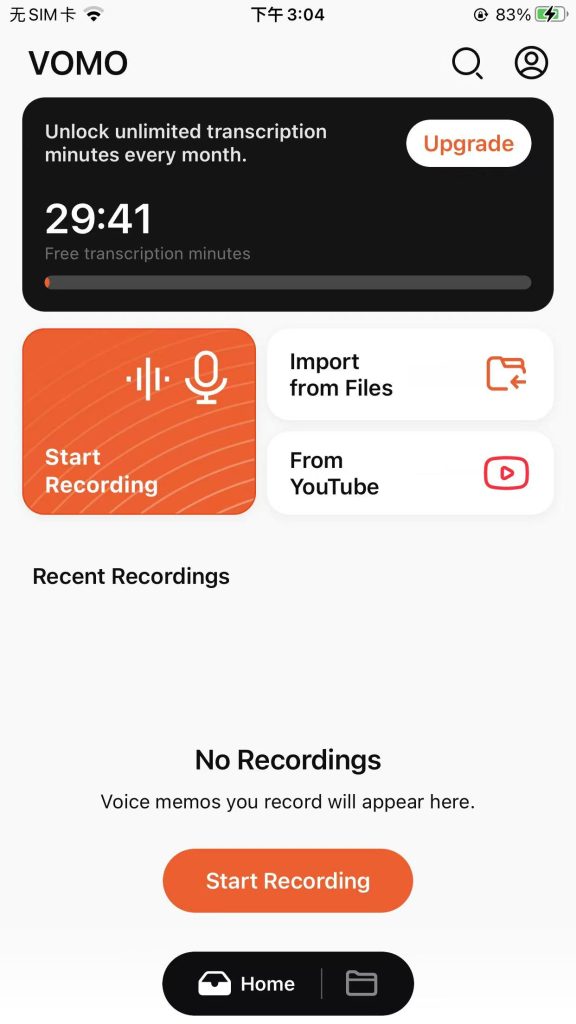
2 Import your video file directly from your gallery or cloud storage.
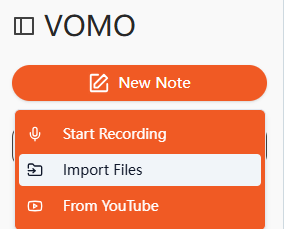
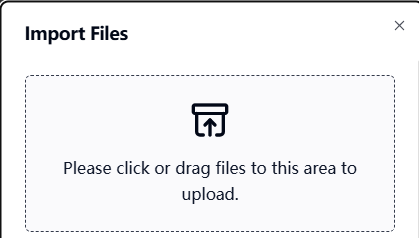
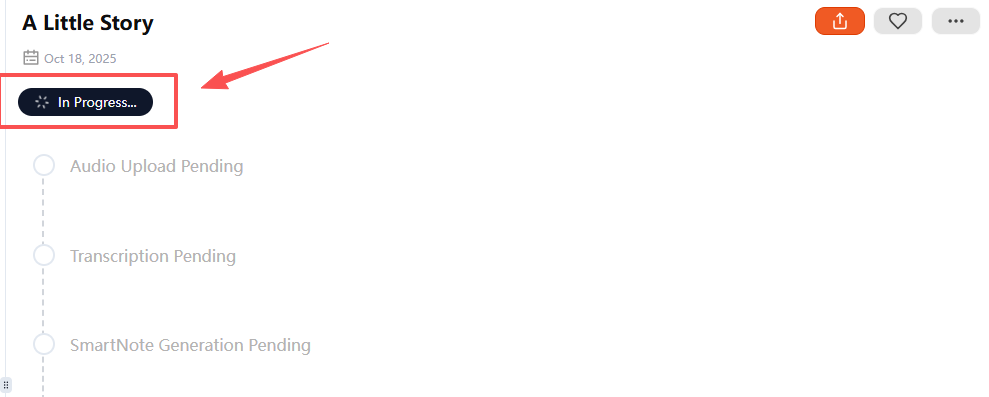
3 Let the AI automatically process and generate the transcript.
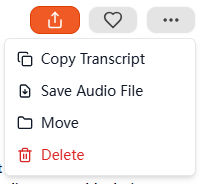
4 Copy the text or share it via a link to use in blogs, notes, or social media.
Upload Large Video Files Directly (No MP3 Conversion Needed)
With VOMO AI, you can upload video files directly from your iPhone:
- No format conversion
- No external tools
- No extra processing
This eliminates the biggest bottleneck in traditional workflows.
Handle 1–3 Hour Videos with Zero Length Limits
Many iOS tools struggle with long content. VOMO is built differently.
You can upload:
- Full-length interviews
- Podcasts
- 3+ hour recordings
The system processes large files without crashing or forcing paid upgrades mid-process.
Get 99% Accuracy with Speaker Identification and Timestamps
Modern transcription isn’t just about text—it’s about structure.
VOMO provides:
- Up to 99% accuracy
- Automatic speaker separation
- Precise timestamps
This makes transcripts:
- Searchable
- Editable
- Production-ready
Beyond the “Wall of Text”: Analyzing Your Video Transcript
A raw transcript is just the starting point. The real value comes from what you do next.
Auto-Generate Structured Notes and Action Items
Instead of reading thousands of words, AI can extract:
- Key insights
- Bullet-point summaries
- Actionable takeaways
This turns long videos into digestible knowledge.
Ask AI: Chat with Your Video Data to Find Exact Quotes
Need one specific quote from a 2-hour video?
Instead of scrolling endlessly, you can:
- Ask direct questions
- Locate exact timestamps
- Extract specific insights instantly
This transforms transcripts into a searchable knowledge base.
6 Other Methods to Transcribe a Video on iPhone
There are other ways to transcribe as well, but they tend to be more complicated and time-consuming.
1. Use Voice Memos with Live Transcription Apps
Record the audio from your video using the built-in Voice Memos app, then upload it into a live transcription tool. This method is useful if you only need the spoken words and don’t want to upload the entire video.
2. Use iPhone’s Built-In Dictation Feature
Play the video out loud and use iPhone’s Dictation (via Notes or Messages) to capture speech into text in real time. While less accurate than AI tools, it works in a pinch without downloading apps.
3. Upload Video to Cloud Services with Built-in AI
If you use Google Drive or Microsoft OneDrive, you can upload your video and use their AI-based transcription services. This option is helpful if you already store files in the cloud.
4. Manual Transcription
As a last resort, you can manually play your iPhone video and type what you hear. This method takes longer but ensures 100% control over accuracy.
5. Converting MP4 to MP3 Before Uploading
This is the most common workflow:
- Export video from Photos
- Convert MP4 → MP3
- Upload to a transcription tool
Problems:
- Extra conversion step
- Time-consuming
- Risk of quality loss
6. The YouTube Private Upload Hack
Another workaround is using YouTube:
- Upload video as private
- Let YouTube auto-generate captions
- Download subtitles
While clever, it has downsides:
- Requires internet + upload time
- Limited formatting control
- Not ideal for long videos
Comparison of Methods to Transcribe a Video on iPhone
| Method | Pros | Cons | Best For |
|---|---|---|---|
| VOMO (AI App) | Fast, accurate, no manual typing, easy sharing via link | Requires internet, limited free usage | Professionals, students, content creators |
| Voice Memos + Transcription App | Simple, uses built-in iPhone app, flexible | Extra steps (record + upload), not fully automated | Quick transcripts from short videos |
| iPhone Dictation (Notes App) | No extra apps needed, works offline | Lower accuracy, background noise interference | Casual use, when internet is unavailable |
| Third-Party Apps (Otter.ai, Rev) | Offers both AI and human transcription | Some require paid plans, upload time | Business meetings, interviews |
| Cloud Services (Google Drive, OneDrive) | Integration with existing storage, automatic AI support | May not support all video formats, internet required | Users already storing files in cloud |
| Manual Transcription | 100% control over accuracy | Very time-consuming | Small clips, critical accuracy needs |
Converting Audio to Text on iPhone
If your recording is saved as an audio file instead of a video, you can still turn it into text seamlessly. This audio to text conversion works efficiently on iPhone and ensures you never miss important details from meetings or lectures.
Which Method Should You Choose?
The best method depends on your needs. If you want speed, accuracy, and minimal effort, VOMO’s Podcast & Video Transcript Generator is the top choice. It delivers instant results and allows you to copy or share transcripts with just one click.
If you prefer not to install apps, iPhone’s built-in Dictation or Voice Memos can help in a pinch, though they may be less accurate. For professional use cases like interviews or business meetings, third-party apps such as Otter.ai or Rev are alternatives, while manual transcription works only if you require absolute precision and don’t mind the extra time.
In short, for most iPhone users, VOMO strikes the best balance between convenience and accuracy.
Frequently Asked Questions (Top Reddit Queries)
Do I need to convert video to audio before transcription?
No. Traditional workflows required MP3 conversion, but modern tools now support direct video uploads, eliminating this step entirely.
How do I get timestamps in a video transcript?
You need a transcription tool that supports structured output. Advanced AI tools automatically generate timestamps alongside text.
Can I transcribe long videos (1–3 hours) on my iPhone?
Yes—but only with tools designed for long-form content. Many basic apps fail or limit duration, while advanced solutions handle full-length videos without issues.
Conclusion: Ditch the Multi-Step Workflow Today
Transcribing video on iPhone used to be a messy, multi-step process involving conversions, uploads, and manual edits.
In 2026, that approach is obsolete.
By switching to a direct, AI-powered workflow, you can:
- Skip file conversions
- Process long videos instantly
- Generate accurate, structured transcripts
The result? What used to take hours now takes minutes—and delivers far better results.
