


To record a Microsoft Teams meeting without host permission, bypass the greyed-out native button by using system-level tools like the Xbox Game Bar (Win + G) on Windows or QuickTime Player on macOS. Guests and attendees are often blocked by organizational policies from starting cloud recordings, leaving them without a record of critical discussions. Using these external screen capture methods ensures you can learn how to save meeting notes in Teams privately regardless of your role.
VOMO turns these silent video files into 99%-accurate, structured meeting notes automatically. By uploading your screen recording to the platform, you get a searchable transcript and key action items in minutes, ensuring you have a professional record even when you aren’t the official meeting organizer.

The “Grey Button” Problem: Why Guests Can’t Record
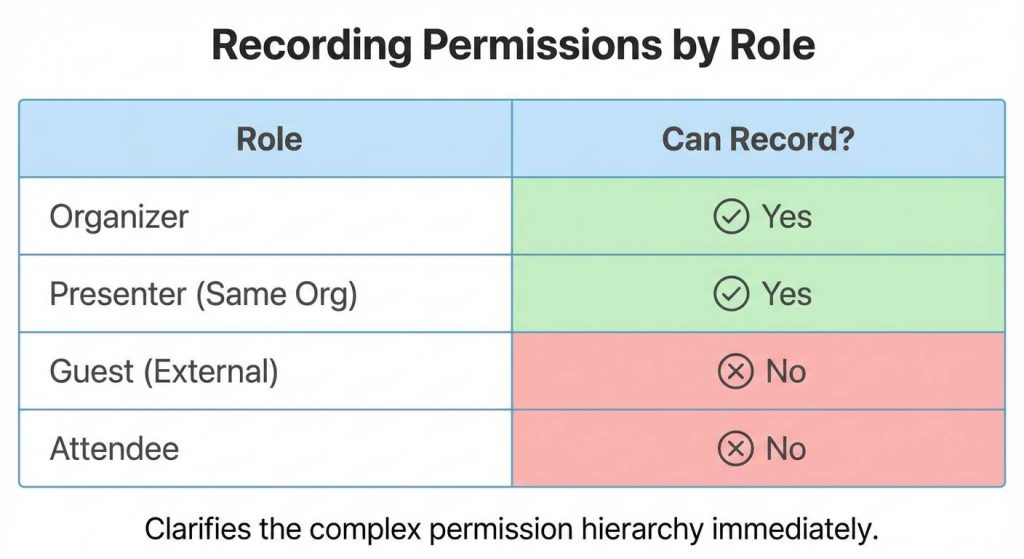
If you are an attendee or a guest in a Microsoft Teams meeting, the “Start Recording” button is often greyed out or missing entirely. This is because Microsoft restricts recording capabilities strictly to meeting organizers or internal members. This restriction is closely tied to where are meeting notes stored in Microsoft Teams, as the platform defaults to saving files in the organizer’s OneDrive or SharePoint.
- Permissions Logic: Only the Organizer or a designated Presenter from the same organization can initiate a cloud recording.
- Policy Restrictions: Even if you are an internal employee, IT administrators can disable recording globally via the Teams Admin Center for compliance reasons.
Method 1: The “Stealth” OS Workaround (Windows & Mac)
Since you cannot use the native Teams recorder, the most reliable workaround is to use the built-in screen recording tools on your computer. These operate at the system level and bypass Teams permissions completely.
Windows: Using Xbox Game Bar
Windows 10 and 11 come with a pre-installed tool called Xbox Game Bar.
- Press Win + G to open the overlay.
- Find the Capture widget and click the Record button (circle icon) or press Win + Alt + R.
- Ensure the Microphone icon is enabled within the widget to capture your own voice alongside the system audio.
Mac: Using Screenshot Toolbar
macOS users can utilize the native Screenshot utility.
- Press Cmd + Shift + 5 to open the toolbar.
- Select Record Entire Screen or Record Selected Portion (frame the Teams window).
- Click Options and ensure a microphone is selected if you need to capture your input, though capturing internal system audio (remote speakers) may require an audio routing plugin like BlackHole.
Troubleshooting Note: If you get a black screen in the recording, try disabling “Hardware Acceleration” in Teams settings or recording the entire desktop instead of just the window.
Method 2: The “Mobile Backup” Strategy (High Reliability)
If your computer lags during screen recording or you are worried about capturing the wrong window, use your smartphone as a dedicated recording device. This is a fundamental technique in how to take meeting notes for any type of meeting where software limitations exist.
- Voice Memos: Open the Voice Memos app (iOS) or Recorder (Android) and place your phone near your computer speakers.
- Redundancy: This creates an independent audio track that isn’t affected if your computer crashes or Teams freezes.
Method 3: Turning “Dumb” Recordings into Smart Notes with VOMO
Raw screen recordings result in massive video files that are difficult to search. You can’t “Ctrl+F” a video file to find what the client said about the budget. VOMO transforms these static recordings into actionable data, effectively solving what are meeting notes in a modern, AI-driven context.
VOMO transforms these static recordings into actionable data. By uploading your screen capture or mobile audio file to the platform, you get a 99%-accurate transcript with speaker identification.
- From Video to Text: VOMO strips the audio from your uploaded video and processes it in minutes, even for long recordings. You can follow a how to use AI to take meeting notes step-by-step guide to streamline this workflow.
- Speaker ID: Even though the recording came from a single system audio track, VOMO’s AI can distinguish between different speakers.
- Action Items: Instead of re-watching an hour of video, VOMO automatically generates structured meeting notes with key points and decisions.
Method 4: The Official Route (Requesting Permissions)
If you prefer to keep everything within Teams, you must ask the meeting organizer to change your role. This is the official path to being able to how to export meeting notes from Microsoft Teams directly from the app later.
- Request Presenter Status: Message the host: “Could you please make me a Presenter so I can record this session for our records?”
- Verification: Once they update your role in the “People” pane, the Start Recording button should become active immediately, provided IT policies allow it.
Legal & Ethical Checklist: Recording Without Consent
Recording a meeting without notifying participants can violate wiretapping laws (like Two-Party Consent states in the US) or GDPR in Europe.
- Does Teams Notify?: When you use native Teams recording, everyone gets a banner notification. When you use Xbox Game Bar or QuickTime, Teams does not detect the screen capture, and participants are not notified.
- Best Practice: Always announce, “I’m going to record this session for my notes, is that okay?” at the start of the call to ensure ethical compliance. This transparency is crucial if you plan on how to share meeting notes in Teams or externally later.
Comparison: Native Recording vs. Screen Capture vs. VOMO
| Feature | Native Teams Recording | Screen Capture (OS Tools) | VOMO Workflow |
| Permission Needed | Yes (Host/Presenter) | No (Any User) | No (Any User) |
| Notification | Automatic Banner | Silent (Manual Consent Needed) | Silent |
| Output | Cloud Video + Transcript | Large Video File (No Text) | Structured Notes + Transcript |
| Searchability | Low (Basic Search) | None | High (AI Q&A) |
| Accuracy | Good (~85%) | N/A | 99% Accuracy |
Frequently Asked Questions (FAQ)
Will Teams notify the host if I screen record?
No. Microsoft Teams cannot currently detect system-level screen recording tools like Xbox Game Bar, QuickTime, or OBS. The host will not see a notification that you are recording.
Can I record a Teams meeting as a guest user?
Natively, no. The “Start Recording” button is disabled for guests. You must use a third-party screen recorder or a device like your phone, then use VOMO to transcribe the audio into notes.
Why is my screen recording silent?
This is a common issue. On Windows (Game Bar), ensure “Record system audio” is checked. On Mac (QuickTime), you strictly record microphone input by default; to capture the meeting audio (what others are saying), you usually need a virtual audio driver like BlackHole or simply use the VOMO web recorder if available.
VOMO empowers you to bypass permission limits by turning any guest recording into 99%-accurate, fully structured meeting notes in minutes.
