

Hur man tar AI-mötesanteckningar i Microsoft Teams
Att föra detaljerade anteckningar under Microsoft Teams-möten kan vara en utmaning, särskilt när du behöver fokusera på diskussionen istället för att skriva allt. Microsoft Teams tillhandahåller flera AI-drivna och kollaborativa anteckningsverktyg för att automatiskt sammanfatta diskussioner, lyfta fram viktiga punkter och generera användbara mötesanteckningar. Genom att använda dessa verktyg kan team spara flera timmar per vecka på dokumentationsuppgifter och se till att inget missas.
Om du letar efter ett mer budgetvänligt alternativ, VOMO AI Mötesanteckningstagare kan komplettera Teams. Det ger transkription i realtid och AI-genererade sammanfattningar utan att kräva en kostsam prenumeration, vilket gör det till en praktisk lösning för enskilda personer eller små team.

Så här använder du Microsoft Teams funktion för samarbetsanteckningar
Före mötet
Med Collaborative Notes kan deltagarna manuellt lägga till anteckningar som visas i realtid under mötet. Så här konfigurerar du det:
- Öppna Microsoft Teams och gå till Möte tab.
- Välj Boka ett möte.
- Klicka på Lägg till mötesanteckningar längst ner i inbjudan. Lägg till agendor, anteckningar eller uppgifter som kommer att visas i den delade rutan under mötet.
Under mötet
- I ett aktivt Teams-möte klickar du på Anteckningar i verktygsfältet.
- Använd Fönster för mötesanteckningar för att skapa en agenda, skriva anteckningar och spåra uppgifter i realtid.
Tillgång till anteckningar efter mötet
- Öppna Microsoft Teams och gå till Kalender.
- Välj det möte du vill granska och klicka sedan på Utöka mötesinformationen > Detaljer > Anteckningar.
- Anteckningar är också sökbara via Microsoft 365-sökning efter mötesnamn.
Fördelar med gemensamma anteckningar
- Strukturerade punktlistor som kan redigeras av alla deltagare.
- Synkroniserar mellan Microsoft 365-appar, inklusive Teams-chatt och OneNote.
- Tillgänglig efter mötet för genomgång och redigering.
Begränsningar
- Kräver manuellt skrivande, vilket kan vara distraherande.
- Fångar inte automatiskt upp talat innehåll.
- Begränsade formateringsalternativ och inte lätt att exportera utanför Microsoft-appar.
- Endast tillgängligt för organisationer med arbets- eller skolkonton som har aktiverat funktioner för offentlig förhandsgranskning.
Så här använder du Microsoft Teams intelligenta recap-funktion
Vad är intelligent sammanfattning
Intelligent Recap är en AI-driven funktion som analyserar inspelade möten och genererar:
- Färgkodade mötesämnen
- Kapitel med tidslinjemarkörer
- Noter i sammandrag
- Åtgärder
Den använder AI-transkription och naturlig språkbehandling för att skapa snabba sammanfattningar och uppgifter för Teams Premium-användare.
Hur man möjliggör intelligent återrapportering
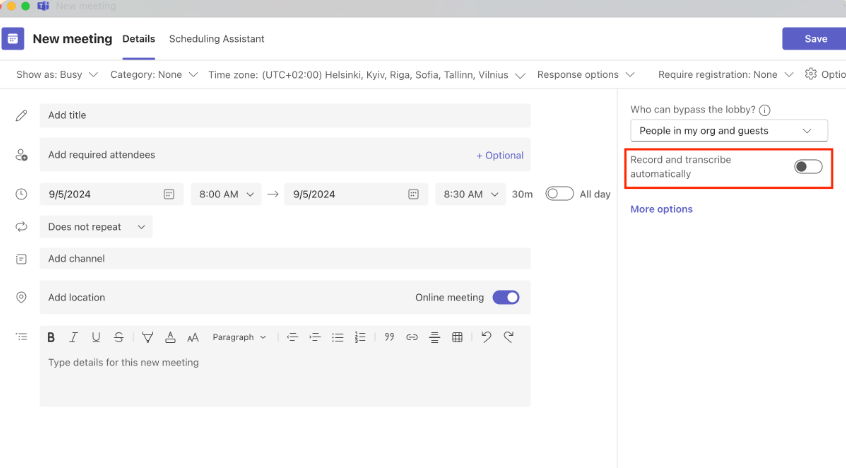
- I mötet klickar du på Mer om > Spela in och transkribera.
- Välj Starta inspelningen eller Starta transkribering.
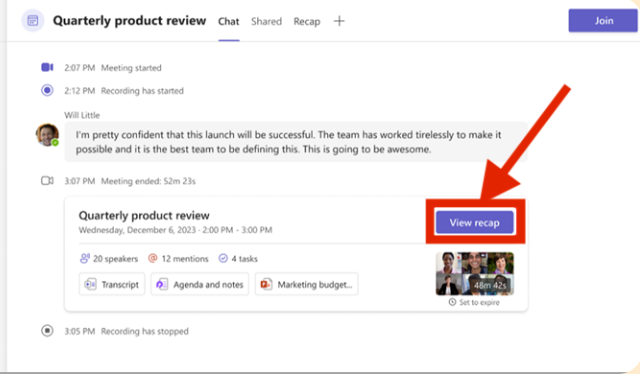
- Efter mötet, gå till Kalender, välj mötet och klicka på knappen Sammanfattning tab.
Fördelarna med intelligenta minnesanteckningar
- Ger en startpunkt för anteckningar och uppgifter.
- Stöd för 25 språk.
- Tillgänglig för alla mötesdeltagare.
- Anteckningar kan redigeras efter mötet.
Begränsningar
- Kräver Teams Premium-licens.
- AI-genererat innehåll kan behöva verifieras för att vara korrekt.
- Fungerar endast för inspelade och transkriberade möten.
Hur man använder Microsoft Teams AI-genererade anteckningsfunktion
Vad är AI-genererade anteckningar
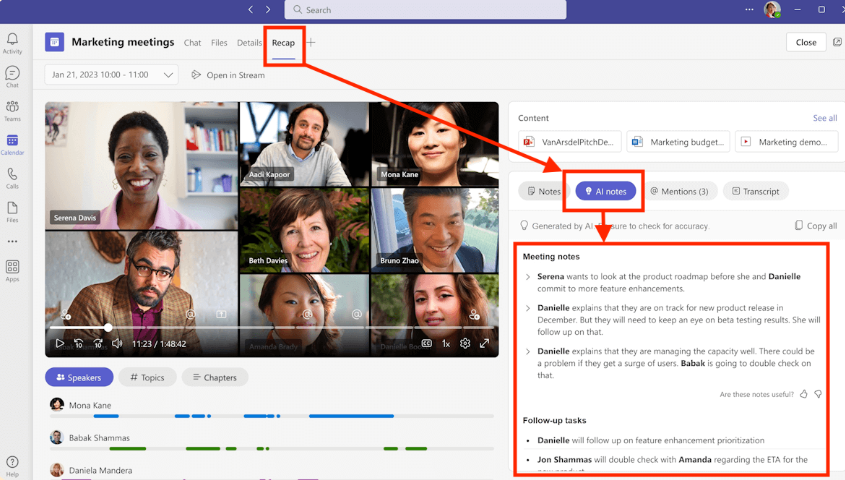
AI-genererade anteckningar automatiskt transkribera schemalagda möten och sammanfatta viktiga diskussionspunkter. Dessa anteckningar finns tillgängliga via Sammanfattning flik och tillhandahålla strukturerade sammanfattningar och åtgärdspunkter.
Så här aktiverar du AI-genererade anteckningar
- Öppna Teams och gå till Kalender.
- Boka ett nytt möte.
- Slå på AI-genererade anteckningar innan du skickar inbjudan.
- Under mötet kan du också aktivera AI-anteckningar via Anteckningar > gnistrande ikon.
Få tillgång till AI-genererade anteckningar efter ett möte
- Gå till Chatt fliken i Teams.
- Välj den möteschatt där AI-anteckningar är aktiverade.
- Klicka på Sammanfattning för att visa utskrifter, sammanfattningar och rekommenderade uppgifter.
Fördelar
- Eliminerar manuellt anteckningsarbete.
- Deltagarna kan redigera anteckningar under eller efter mötet.
- Ger omedelbara sammanfattningar och åtgärdsförslag.
Begränsningar
- Endast tillgängligt för schemalagda möten, inte direkt- eller kanalmöten.
- Kräver Microsoft 365 Copilot-licens och tillgång till offentlig förhandsgranskning.
- AI-sammanfattningar kan behöva verifieras för att vara korrekta.
Använda VOMO som ett kompletterande AI-anteckningsverktyg
Om du inte har tillgång till Teams Premium eller vill AI-anteckningar i realtid utan dyra prenumerationer, VOMO AI Mötesanteckningstagare är ett bra alternativ:
- Fångar live-utskrifter av dina Microsoft Teams-möten.
- Skapar AI-drivna sammanfattningar och åtgärdsförslag direkt.
- Gör att du kan interagera med utskriften för att få förtydliganden eller djupare insikter.
- Fungerar för flera möten utan extra licenskostnader.
VOMO hjälper team att spara tid och samtidigt upprätthålla korrekta och användbara mötesanteckningar.
Bästa praxis för AI-mötesanteckningar i Microsoft Teams
- Aktivera alltid transkribering för korrekta AI-sammanfattningar.
- Spela in möten för att maximera effektiviteten i Intelligent Recap.
- Granska AI-genererade anteckningar för fullständighet och sammanhang.
- Dela anteckningar och uppgifter direkt efter möten för snabbare avstämning.
- Kombinera Teams AI-verktyg med VOMO för budgetvänliga sammanfattningar i realtid.
Slutsats
AnvändaAI för att ta mötesanteckningar i Microsoft Teams kan dramatiskt förbättra din produktivitet genom att säkerställa att varje diskussionspunkt, åtgärdspunkt och beslut fångas exakt utan att distrahera dig från att delta i mötet. Genom att använda Collaborative Notes, Intelligent Recap och AI-genererade anteckningar kan team spara timmar i veckan och samtidigt upprätthålla strukturerad och användbar dokumentation. För dig som letar efter ett kostnadseffektivt alternativ eller AI-stöd i realtid, VOMO AI Mötesanteckningstagare erbjuder sömlös transkribering och AI-sammanfattningar, vilket gör det enkelt att hålla koll på varje möte. Genom att använda dessa AI-verktyg kan teamen fokusera på samarbete och beslutsfattande, snarare än på manuella anteckningar.
