

كيفية تدوين ملاحظات اجتماعات الذكاء الاصطناعي في Microsoft Teams
قد يكون تدوين الملاحظات التفصيلية أثناء اجتماعات Microsoft Teams أمراً صعباً، خاصةً عندما تحتاج إلى التركيز على المناقشة بدلاً من كتابة كل شيء. توفر Microsoft Teams العديد من أدوات تدوين الملاحظات التعاونية والمدعومة بالذكاء الاصطناعي لتلخيص المناقشات تلقائياً وإبراز النقاط الرئيسية وإنشاء ملاحظات اجتماعات قابلة للتنفيذ. باستخدام هذه الأدوات، يمكن للفرق توفير عدة ساعات أسبوعياً في مهام التوثيق وضمان عدم تفويت أي شيء.
إذا كنت تبحث عن خيار أكثر ملاءمة للميزانية, مدون ملاحظات اجتماع VOMO AI يمكن أن تكمل الفرق. وهي توفير النسخ في الوقت الفعلي والملخصات التي يتم إنشاؤها بواسطة الذكاء الاصطناعي دون الحاجة إلى اشتراك مكلف، مما يجعله حلاً عملياً للأفراد أو الفرق الصغيرة.

كيفية استخدام خاصية الملاحظات التعاونية في Microsoft Teams
قبل الاجتماع
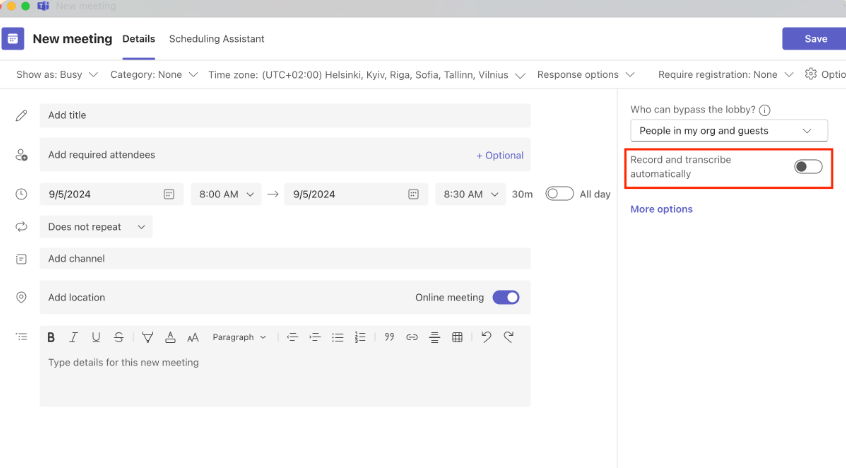
تتيح الملاحظات التعاونية للمشاركين إضافة ملاحظات يدوياً تظهر في الوقت الفعلي أثناء الاجتماع. لإعداده:
- افتح Microsoft Teams وانتقل إلى لقاء علامة التبويب.
- اختر حدد موعداً للاجتماع.
- انقر فوق إضافة ملاحظات الاجتماع في الجزء السفلي من الدعوة. أضف جداول الأعمال أو الملاحظات أو المهام التي ستظهر في الجزء المشترك أثناء الاجتماع.
خلال الاجتماع
- في اجتماع Teams النشط، انقر فوق الملاحظات في شريط الأدوات.
- استخدم جزء ملاحظات الاجتماع لإنشاء جدول أعمال، وكتابة ملاحظات، وتتبع المهام في الوقت الفعلي.
الوصول إلى الملاحظات بعد الاجتماع
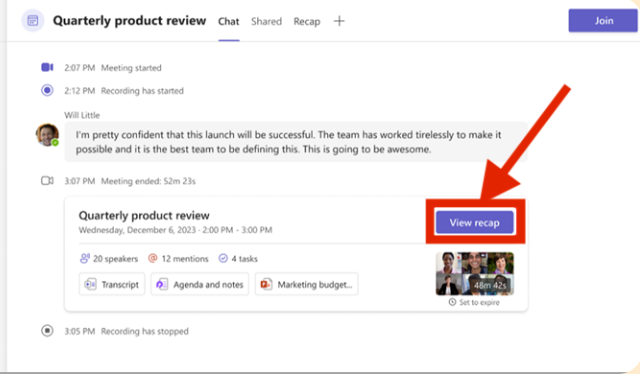
- افتح Microsoft Teams وانتقل إلى التقويم.
- حدد الاجتماع الذي تريد مراجعته، ثم انقر فوق توسيع تفاصيل الاجتماع > التفاصيل > الملاحظات.
- يمكن البحث في الملاحظات أيضًا عبر البحث في Microsoft 365 عن طريق البحث في Microsoft 365 حسب اسم الاجتماع.
فوائد الملاحظات التعاونية
- نقاط منظمة قابلة للتعديل من قبل جميع المشاركين.
- المزامنة عبر تطبيقات Microsoft 365، بما في ذلك دردشة Teams وOneNote.
- يمكن الوصول إليها بعد الاجتماع للمراجعة والتحرير.
القيود
- يتطلب الكتابة اليدوية، مما قد يؤدي إلى تشتيت الانتباه.
- لا يلتقط المحتوى المنطوق تلقائياً.
- خيارات التنسيق محدودة ولا يمكن تصديرها بسهولة خارج تطبيقات Microsoft.
- متاح فقط للمؤسسات التي لديها حسابات عمل أو حسابات مدرسية قامت بتمكين ميزات المعاينة العامة.
كيفية استخدام ميزة ’الملخص الذكي" من Microsoft Teams
ما هو الملخص الذكي
الملخص الذكي هي ميزة مدعومة بالذكاء الاصطناعي تقوم بتحليل الاجتماعات المسجلة وتوليدها:
- مواضيع الاجتماع المرمزة بالألوان
- الفصول ذات العلامات الزمنية
- ملخص الملاحظات
- بنود العمل
يستخدم النسخ بالذكاء الاصطناعي ومعالجة اللغة الطبيعية لإنشاء ملخصات ومهام سريعة لمستخدمي Teams Premium.
كيفية تمكين الملخص الذكي
- في الاجتماع، انقر فوق المزيد > التسجيل والتدوين.
- اختر بدء التسجيل أو بدء النسخ.
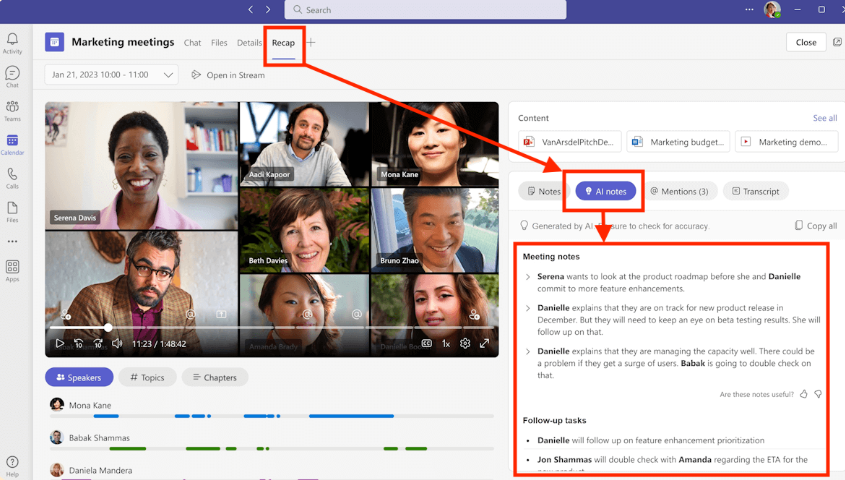
- بعد الاجتماع، انتقل إلى التقويم, وحدد الاجتماع، وانقر على الخلاصة علامة التبويب.
فوائد ملاحظات التلخيص الذكي
- يوفر نقطة بداية للملاحظات والمهام.
- يدعم 25 لغة.
- متاح لجميع الحاضرين في الاجتماع.
- يمكن تحرير الملاحظات بعد الاجتماع.
القيود
- يتطلب ترخيص Teams Premium.
- قد يحتاج المحتوى الذي يتم إنشاؤه بواسطة الذكاء الاصطناعي إلى التحقق من دقته.
- يعمل فقط للاجتماعات المسجلة والمدونة.
كيفية استخدام ميزة الملاحظات التي ينشئها الذكاء الاصطناعي في Microsoft Teams
ما هي الملاحظات التي يتم إنشاؤها بواسطة الذكاء الاصطناعي
ملاحظات من إنشاء الذكاء الاصطناعي تدوين الاجتماعات المجدولة تلقائيًا وتلخيص نقاط المناقشة الرئيسية. تتوفر هذه الملاحظات عبر الخلاصة علامة التبويب وتقديم ملخصات منظمة وعناصر العمل.
كيفية تمكين الملاحظات المُنشأة بالذكاء الاصطناعي
- افتح الفرق وانتقل إلى التقويم.
- حدد موعداً لاجتماع جديد.
- تشغيل ملاحظات من إنشاء الذكاء الاصطناعي قبل إرسال الدعوة.
- أثناء الاجتماع، يمكنك أيضًا تمكين ملاحظات الذكاء الاصطناعي عبر الملاحظات > أيقونة التألق.
الوصول إلى الملاحظات التي تم إنشاؤها بالذكاء الاصطناعي بعد الاجتماع
- انتقل إلى الدردشة علامة تبويب في الفرق.
- حدد دردشة الاجتماع مع تمكين ملاحظات الذكاء الاصطناعي.
- انقر فوق الخلاصة لعرض النصوص والملخصات والمهام الموصى بها.
المزايا
- التخلص من تدوين الملاحظات يدوياً.
- يمكن للمشاركين تحرير الملاحظات أثناء الاجتماع أو بعده.
- يوفر ملخصات فورية وعناصر إجراءات فورية.
القيود
- متاح فقط للاجتماعات المجدولة، وليس للاجتماعات الفورية أو اجتماعات القنوات.
- يتطلب ترخيص Microsoft 365 Copilot والوصول إلى المعاينة العامة.
- قد تتطلب ملخصات الذكاء الاصطناعي التحقق من دقتها.
استخدام VOMO كأداة تكميلية لتدوين الملاحظات باستخدام الذكاء الاصطناعي
إذا لم يكن لديك إمكانية الوصول إلى Teams Premium أو كنت تريد ملاحظات الذكاء الاصطناعي في الوقت الفعلي بدون اشتراكات باهظة الثمن, مدون ملاحظات اجتماع VOMO AI خيار رائع:
- تسجيل النصوص المباشرة لاجتماعات Microsoft Teams الخاصة بك.
- إنشاء ملخصات وعناصر عمل مدعومة بالذكاء الاصطناعي على الفور.
- يتيح لك التفاعل مع النص للحصول على توضيحات أو رؤى أعمق.
- يعمل عبر اجتماعات متعددة دون تكاليف ترخيص إضافية.
يساعد VOMO فرق العمل على توفير الوقت مع الاحتفاظ بملاحظات اجتماعات دقيقة وقابلة للتنفيذ.
أفضل الممارسات لملاحظات اجتماعات الذكاء الاصطناعي في Microsoft Teams
- تمكين النسخ دائمًا للحصول على ملخصات دقيقة للذكاء الاصطناعي.
- تسجيل الاجتماعات لزيادة فعالية الخلاصة الذكية إلى أقصى حد ممكن.
- قم بمراجعة الملاحظات التي تم إنشاؤها بواسطة الذكاء الاصطناعي للتأكد من اكتمالها وسياقها.
- شارك الملاحظات والمهام مباشرةً بعد الاجتماعات لمواءمة أسرع.
- اجمع بين أدوات الذكاء الاصطناعي الخاصة بفرق العمل مع VOMO للحصول على ملخصات في الوقت الفعلي ومناسبة للميزانية.
الخاتمة
استخدامالذكاء الاصطناعي لتدوين ملاحظات الاجتماعات في مايكروسوفت تيمز تحسين إنتاجيتك بشكل كبير، مما يضمن تسجيل كل نقطة مناقشة وبند إجراء وقرار بدقة دون تشتيت انتباهك عن المشاركة في الاجتماع. من خلال الاستفادة من الملاحظات التعاونية والملخص الذكي والملاحظات التي يتم إنشاؤها بالذكاء الاصطناعي، يمكن للفرق توفير ساعات أسبوعياً مع الحفاظ على التوثيق المنظم والقابل للتنفيذ. لأولئك الذين يبحثون عن بديل فعال من حيث التكلفة أو دعم الذكاء الاصطناعي في الوقت الفعلي, مدون ملاحظات اجتماع VOMO AI توفر ميزة النسخ السلس وملخصات الذكاء الاصطناعي، مما يجعل من السهل متابعة كل اجتماع. يتيح استخدام أدوات الذكاء الاصطناعي هذه للفرق التركيز على التعاون واتخاذ القرارات، بدلاً من تدوين الملاحظات يدوياً.
