يمكن إضافة ملاحظات الاجتماع إلى مستندات Google Docs بسرعة وكفاءة، حتى أثناء الجداول الزمنية المزدحمة. باستخدام قالب ملاحظات الاجتماع المدمج في محرر مستندات Google أو دمج النسخ بالذكاء الاصطناعي أدوات، يمكنك تسجيل القرارات الرئيسية وعناصر الإجراءات والمناقشات في أقل من ثلاث دقائق. ويضمن النهج الصحيح حصول فريقك على سجل واضح وسهل الوصول إليه لكل اجتماع، مما يقلل من ارتباك المتابعة ويعزز الإنتاجية.
للفرق التي تتطلع إلى زيادة تبسيط هذه العملية, تقدم VOMO إمكانات ملاحظات الاجتماعات المدعومة بالذكاء الاصطناعي, تدوين المناقشات وتلخيص النقاط الرئيسية تلقائياً في مستندات Google مباشرةً في مستندات Google، بحيث يمكنك التركيز على الاجتماع بدلاً من كتابة الملاحظات.

لماذا يعد مستندات Google Docs أفضل مكان لملاحظات الاجتماعات
يوفر محرر مستندات Google بيئة مركزية وتعاونية لتخزين ملاحظات الاجتماع. على عكس رسائل البريد الإلكتروني المبعثرة أو الملاحظات الشخصية، يصبح المستند المشترك مصدرًا واحدًا للحقيقة لفريقك. وبفضل الأقسام المنظمة “للملاحظات” و“بنود العمل”، يمكن للجميع تتبع التقدم المحرز والمساءلة بسهولة. تُبلغ الفرق التي تعتمد على مستندات Google المشتركة للاجتماعات عن متابعة أسرع، وتقليل سوء الفهم، وتحسين نقل المعرفة، خاصةً عند تأهيل أعضاء الفريق الجدد.
الطريقة 1: استخدام قالب ملاحظات الاجتماع في مستندات Google (النهج اليدوي)
أبسط طريقة لإضافة ملاحظات الاجتماع هو الاستفادة من القالب المدمج في مستندات جوجل. إليك الطريقة:
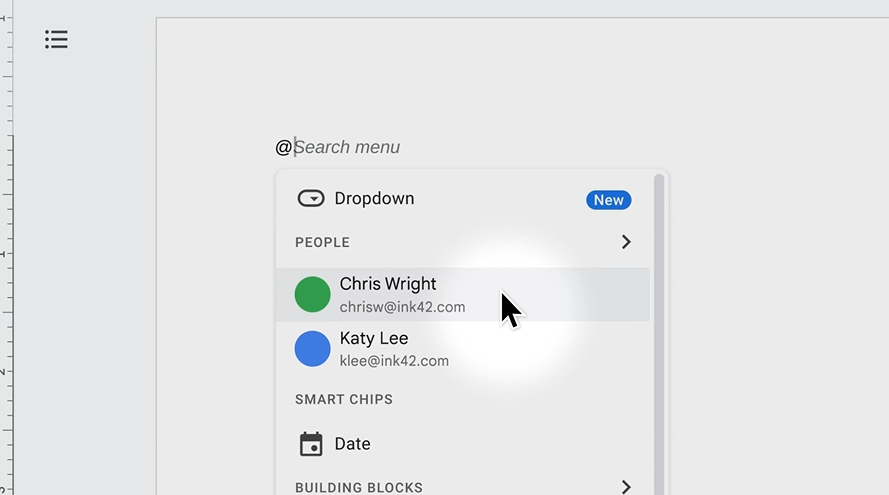
- افتح مستند Google جديدًا أو موجودًا.
- اكتب الرمز “@”.
- اختر ملاحظات الاجتماع من القائمة المنسدلة Building Blocks.
- اختر حدث تقويم Google من القائمة.
يسحب القالب تلقائيًا تاريخ الاجتماع وعنوانه والحضور. كما أنه يوفر أقسامًا للملاحظات وعناصر الإجراءات مع قوائم مرجعية لتمييز المهام المكتملة.
مثال على ذلك: إذا كان فريقك يعقد اجتماعًا أسبوعيًا للمنتج، فإن استخدام القالب يتيح لك البدء في توثيق عناصر الإجراءات على الفور، دون تبديل علامات التبويب أو إدخال معلومات الحضور يدويًا.
الإيجابيات: مجاني وسريع ومتكامل مع Google Workspace. مثالية للاجتماعات الصغيرة أو غير الرسمية.
السلبيات: يجب كتابة الملاحظات مباشرةً أو بعد الاجتماع مباشرة، وهو ما قد يمثل تحدياً للمناقشات الطويلة.
الطريقة 2: نسخ تسجيلات الاجتماعات لمحرّر مستندات Google (شبه آلي)
بالنسبة لـ وثائق أكثر تفصيلاً, فإن تسجيل اجتماعاتك وتدوينها يوفر حلاً وسطاً. إليك العملية
- سجِّل الاجتماع باستخدام لقاء جوجل ميت أو زووم.
- قم بتحميل التسجيل إلى أداة النسخ.
- قم بتحرير النص من أجل الوضوح، وتحديد هوية المتحدث، والتنسيق.
- انسخ النسخة التي تم تنظيفها أو ارفعها إلى مستندات Google.
مثال على ذلك: يمكن لفريق التسويق الذي يقوم بمراجعة حملة ربع سنوية تسجيل جلسة مدتها ساعة واحدة، ثم تدوينها وتحريرها في مستندات Google. وتسجل الملاحظات الناتجة كل نقطة نقاش وقرار، مما يجعلها مفيدة للرجوع إليها في المستقبل.
الإيجابيات: يقلل من ضغط تدوين الملاحظات المباشرة ويوفر سجلاً كاملاً.
السلبيات: يتطلب عمل ما بعد الاجتماع لتنظيف النصوص، الأمر الذي قد يستغرق وقتاً طويلاً.
الطريقة 3: الأتمتة باستخدام مساعدي اجتماعات الذكاء الاصطناعي (مؤتمتة بالكامل)
يرتقي مساعدو الاجتماعات بالذكاء الاصطناعي بالكفاءة إلى المستوى التالي من خلال تسجيل الاجتماعات وتدوينها وتلخيصها تلقائيًا. يمكن تسليم الملاحظات مباشرةً في مستندات Google دون جهد يدوي.
كيف يعمل:
- قم بتوصيل مساعد الذكاء الاصطناعي بالتقويم الخاص بك.
- تقوم الأداة بالانضمام إلى اجتماعاتك تلقائياً وتسجيل المناقشات وتدوينها.
- في غضون دقائق من انتهاء الاجتماع، تظهر الملاحظات المنظمة في محرر مستندات Google.
مثال على ذلك: يمكن لفريق المشروع الذي يستخدم مساعد الذكاء الاصطناعي إنشاء ملخصات قابلة للتنفيذ على الفور مع القرارات الرئيسية والمهام المعينة. ويؤدي ذلك إلى التخلص من مخاطر العناصر المفقودة وتقليل عبء العمل الإداري.
الإيجابيات: توفير الوقت، وتقليل الأخطاء البشرية، وتقديم ملاحظات منظمة وقابلة للتنفيذ.
السلبيات: قد تتطلب الميزات المتقدمة اشتراكاً لأحجام الاجتماعات الأعلى.
كيفية مشاركة ملاحظات اجتماعات مستندات Google مع فريقك
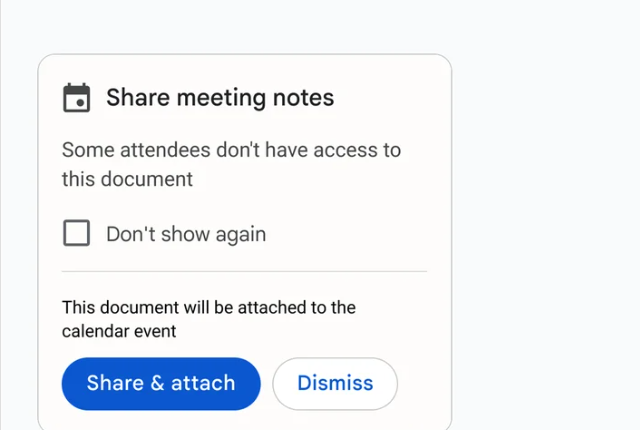
بمجرد تسجيل الملاحظات، تصبح المشاركة أمرًا بالغ الأهمية. يوفر محرر مستندات Google طرقاً متعددة:
- المشاركة المباشرة: انقر فوق شارك لدعوة الحاضرين الذين لديهم أذونات عرض أو تعليق أو تحرير.
- إرفاق حدث التقويم: إذا تم إنشاء الملاحظات عبر قالب مرتبط بالتقويم، فيمكن إرفاقها تلقائيًا بحدث الاجتماع.
- التوزيع الفوري: شارك مباشرة بعد الاجتماع للحفاظ على الزخم.
تعمل الملاحظات المشتركة بشكل جيد على تحسين مساءلة الفريق وضمان قدرة جميع المشاركين على الرجوع إلى القرارات والمتابعة بسرعة.
اختيار الطريقة المناسبة لاحتياجاتك
| الطريقة | الأفضل لـ | الميزة الرئيسية | النظر في |
|---|---|---|---|
| دليل (قالب) | فرق صغيرة واجتماعات غير متكررة | سريع وبسيط | قد تكون محدودة للاجتماعات الطويلة أو المعقدة |
| شبه آلي (النصوص) | الفرق التي تحتاج إلى سجلات مفصلة | التقاط المناقشة الكاملة | يتطلب التحرير بعد الاجتماع |
| آلي (مساعد الذكاء الاصطناعي) | اجتماعات متكررة ومعقدة | مؤتمتة ودقيقة بالكامل | قد تتطلب الميزات المتقدمة اشتراكاً |
الخاتمة
لم يعد إنشاء ملاحظات الاجتماعات ومشاركتها في محرّر مستندات Google مهمة شاقة. فسواء اخترت القالب اليدوي أو التسجيلات المكتوبة أو المساعدين المؤتمتة بالكامل باستخدام الذكاء الاصطناعي، يمكنك تسجيل الملاحظات وتنظيمها وتوزيعها بكفاءة. ومن خلال الاستفادة من هذه الأساليب، يمكن للفرق الحفاظ على التوافق بين الفرق وتتبع المهام بفعالية وتقليل الوقت الضائع في المتابعة.
من خلال بضع نقرات فقط أو عمليات سير العمل التلقائية للذكاء الاصطناعي، يصبح محرر مستندات Google مركزًا لسجلات الاجتماعات القابلة للتنفيذ والواضحة والتي يمكن الوصول إليها.